
How to Fix CF-0x07 Warning Message in ProgeCAD
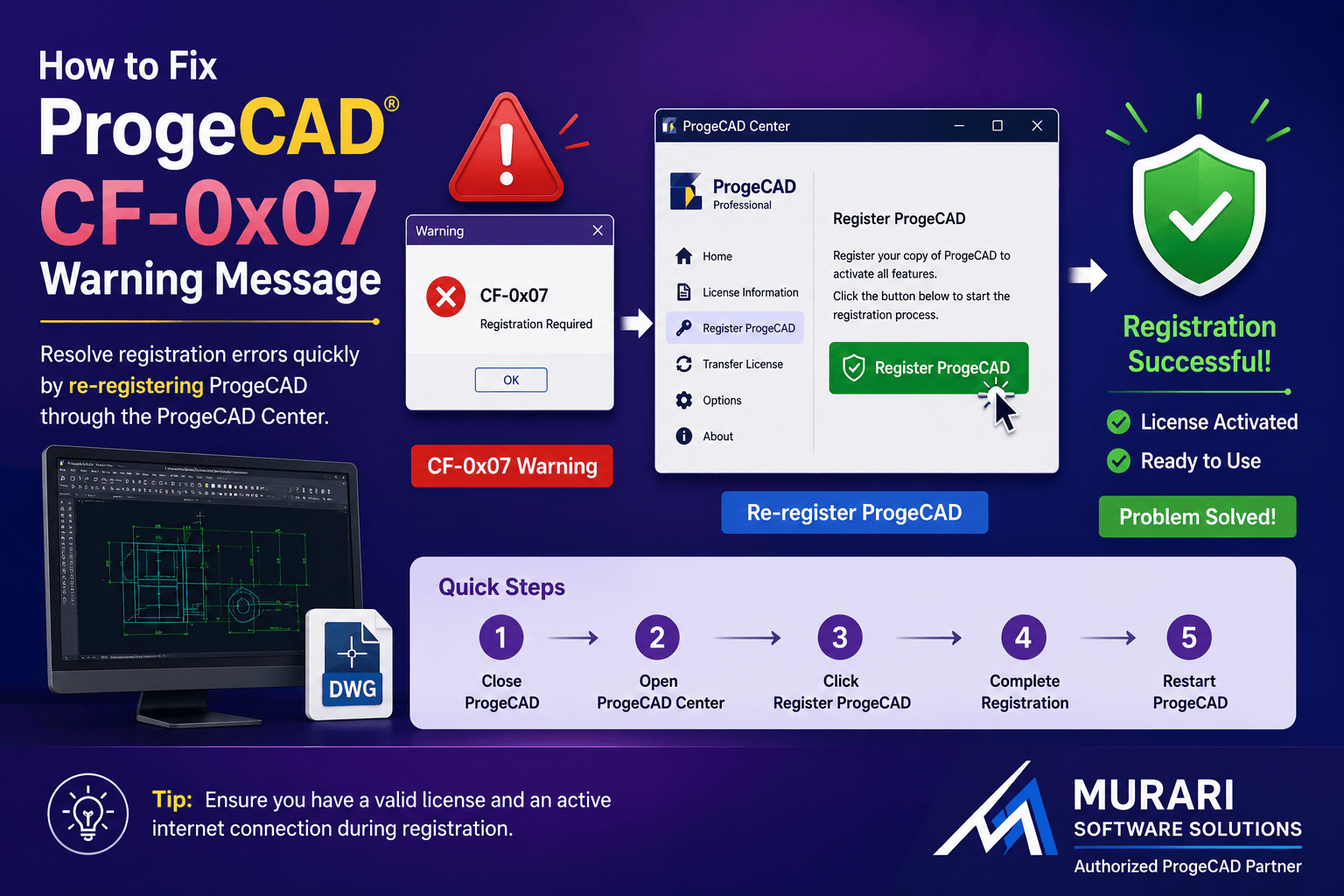
How to Fix CF-0x07 Warning Message in ProgeCAD
If you see the CF-0x07 warning message while starting or using ProgeCAD, the problem is usually related to software activation or registration. In most cases, the issue can be resolved by registering the software again.
Why Does the CF-0x07 Error Occur?
The warning generally appears when the software cannot validate the existing license information. This may happen after reinstalling Windows, changing hardware, restoring a backup, or if the registration process was interrupted.
How to Fix the CF-0x07 Warning
Follow these simple steps:
1. Close ProgeCAD if it is running.
2. Open the Windows Start Menu.
3. Go to All Programs and open the ProgeCAD program group.
4. Launch ProgeCAD Center.
5. Click Register ProgeCAD.
6. Complete the registration using your valid license details.
7. Restart ProgeCAD and verify that the warning message has disappeared.
If the Problem Continues
If registering the software again does not solve the problem, verify that your license key is valid and that you are using the correct ProgeCAD version. You should also ensure that your antivirus or Windows security settings are not blocking the licensing service.
If you still experience the CF-0x07 warning, contact Murari Software Solutions for professional ProgeCAD licensing and technical support.
Need ProgeCAD Support?
Murari Software Solutions is the authorized ProgeCAD partner in India, providing software licensing, installation assistance, migration services, and technical support for businesses, engineers, architects, and CAD professionals.