
AutoCAD® Text Not Properly Aligned in ProgeCAD? Fix Font Alignment Issues
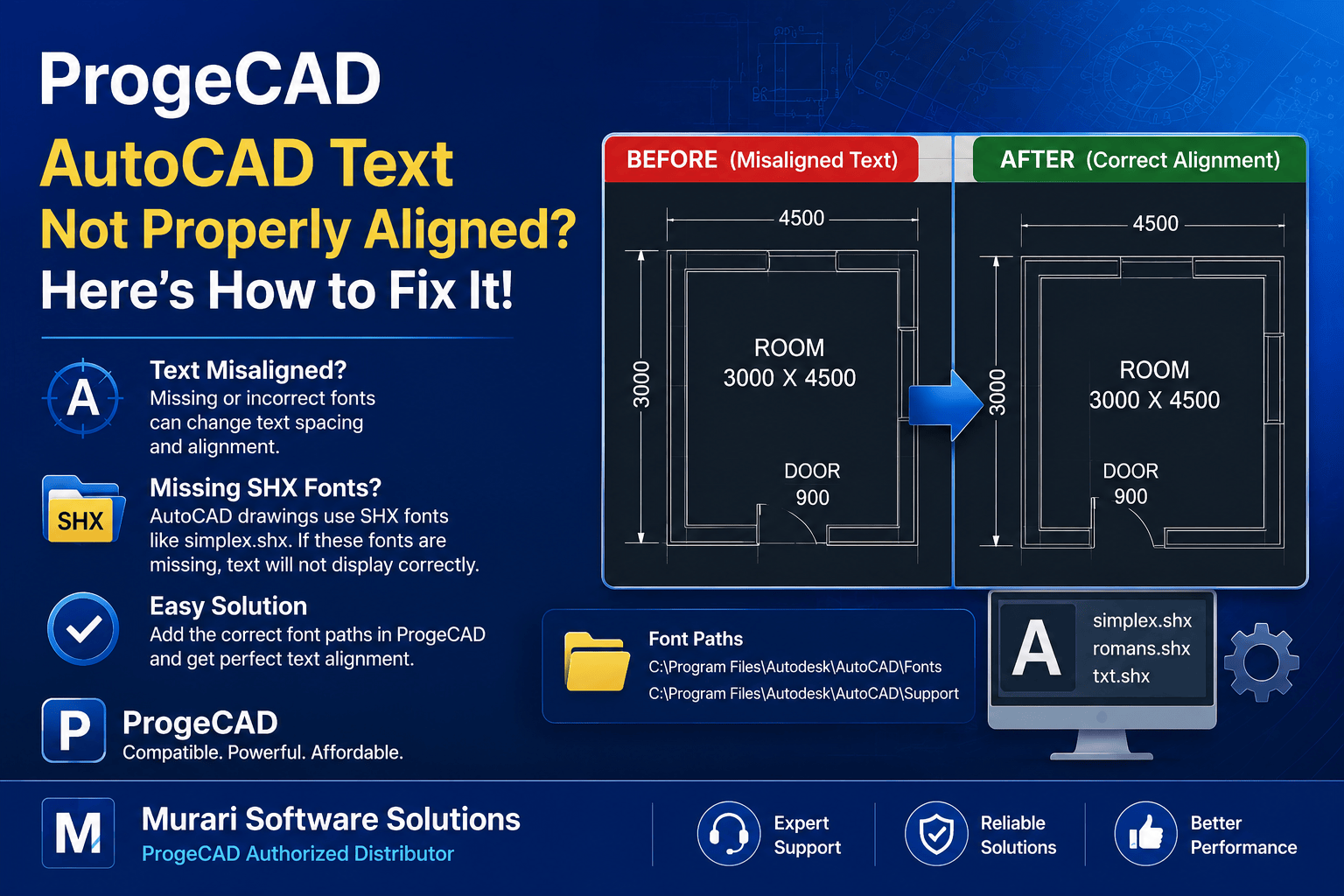
AutoCAD® Text Alignment Issues in ProgeCAD
If text appears misaligned or incorrectly positioned after opening an AutoCAD® drawing in ProgeCAD, the issue is usually caused by missing or unsupported font files. Many AutoCAD® drawings use SHX fonts that may not be installed on your computer.
Why Does This Happen?
AutoCAD® drawings often reference custom SHX fonts such as simplex.shx, romans.shx, or other AutoCAD® font files. If these fonts are unavailable, ProgeCAD substitutes another font, which can change text spacing, alignment, and appearance.
How to Fix Text Alignment
- Locate the original AutoCAD® SHX font files.
- Open ProgeCAD.
- Go to Tools > Options.
- Select the Files tab.
- Add the folder containing the AutoCAD® font files to the Fonts search path.
- Restart ProgeCAD and reopen the drawing.
Common Font Locations
- C:\Program Files\Autodesk\AutoCAD®\Fonts
- C:\Program Files\Autodesk\AutoCAD®\Support
If you have a licensed AutoCAD® installation, adding these folders allows ProgeCAD to display text correctly without changing the original formatting.
Additional Tips
- Install all required SHX fonts before opening shared drawings.
- Avoid replacing SHX fonts unless necessary.
- Keep project fonts together when sharing DWG files.
- Use the REGEN command after installing missing fonts to refresh the drawing.
Need Technical Support?
If the text is still not aligned correctly after installing the required fonts, our support team can help identify missing font files and resolve the issue. Please contact Murari Software Solutions for expert ProgeCAD assistance.