
Blog · 04-Jun-2025
How to Fix "Cannot Open a Drawing" in ProgeCAD
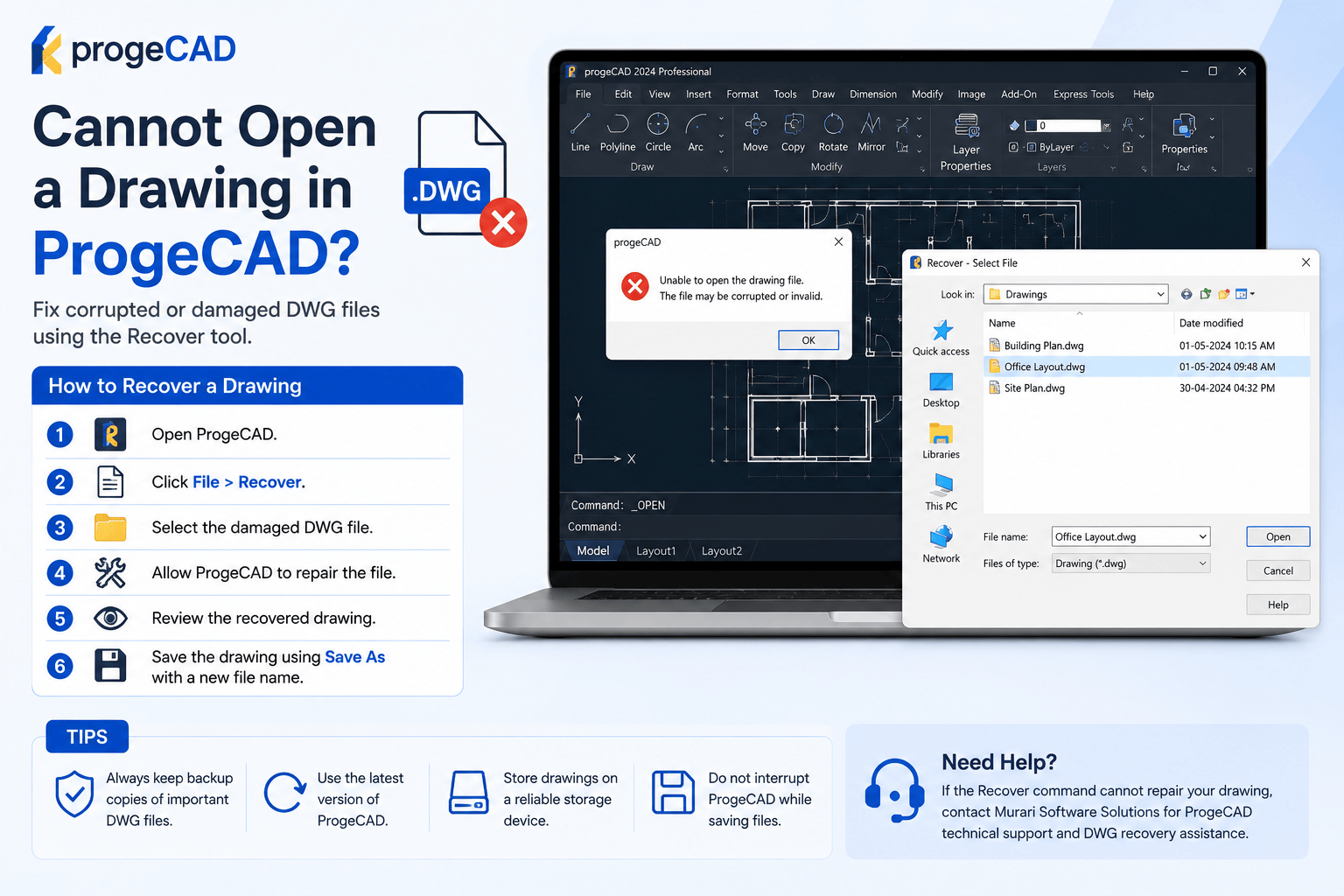
How to Fix a Drawing That Will Not Open in ProgeCAD
If your ProgeCAD drawing does not open, the DWG file may be damaged or corrupted. ProgeCAD includes a Recover tool that can repair many drawing errors and restore the file.
Common Problems
- An error message appears while opening the drawing.
- The drawing does not open but no error is displayed.
- ProgeCAD stops responding while loading the drawing.
- The drawing loading process does not finish.
Recover the Drawing
- Open ProgeCAD.
- Click File > Recover.
- Select the damaged DWG file.
- Allow ProgeCAD to complete the recovery process.
- Review the recovered drawing.
- Save the drawing using Save As and give it a new file name.
Why Save As a New File?
Saving the recovered drawing with a different file name protects the original file. If some objects cannot be recovered, you will still have the original drawing available for future recovery attempts.
Tips
- Keep backup copies of important DWG files.
- Use the latest version of ProgeCAD.
- Do not interrupt the software while saving drawings.
- Store drawings on a reliable storage device.
Need Assistance?
If the Recover command cannot repair your drawing, contact Murari Software Solutions for ProgeCAD technical support, DWG recovery, installation assistance, and licensing support.