
ProgeCAD Cursor Movement Is Erratic? Fix Mouse & FlyOver Snap Issues
How to Fix Erratic Cursor Movement in ProgeCAD
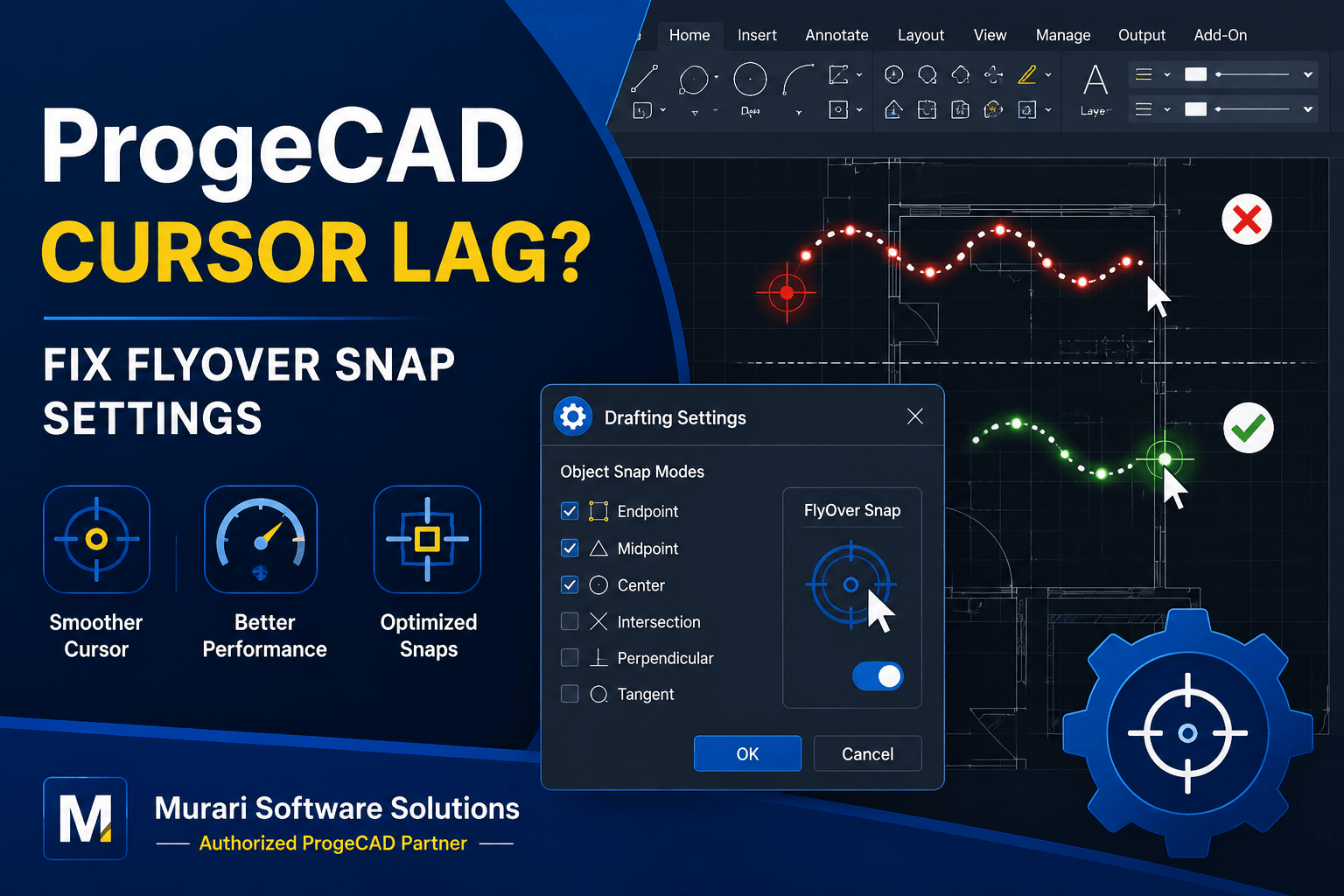
If the cursor movement in ProgeCAD appears slow, jumps unexpectedly, or behaves erratically while working on drawings, the issue is often related to the FlyOver Object Snap (ESNAP) settings. This feature continuously searches for nearby object snap points, which can consume additional system resources, especially when working with large or complex drawings.
Disabling unnecessary FlyOver Snap options or limiting the active snap modes can significantly improve cursor responsiveness and overall drawing performance.
Why Does the Cursor Move Erratically?
- Too many FlyOver Object Snaps are enabled.
- Large or highly detailed drawings require additional processing.
- The computer has limited CPU or graphics performance.
- Multiple snap modes are active simultaneously.
How to Fix the Problem
- Open ProgeCAD.
- Locate the ESNAP button in the status bar at the bottom of the screen.
- Right-click the ESNAP button.
- Select Settings.
- Disable unnecessary FlyOver Snap options.
- Keep only essential snap modes such as Endpoint, Midpoint, or Center.
- Click OK and test the cursor movement.
Recommended Settings
For better performance, enable only the object snaps you use regularly. Avoid enabling every snap mode simultaneously, particularly when editing large DWG files.
Additional Performance Tips
- Close unused applications to free system memory.
- Keep your graphics drivers updated.
- Use hardware acceleration if supported by your graphics card.
- Reduce unnecessary visual effects when working with very large drawings.
Need Help?
If cursor lag or erratic movement continues after adjusting the Object Snap settings, contact Murari Software Solutions for professional ProgeCAD technical support and troubleshooting assistance.