
Some Texts Are Not Displayed Properly in ProgeCAD? Complete Font Fix Guide
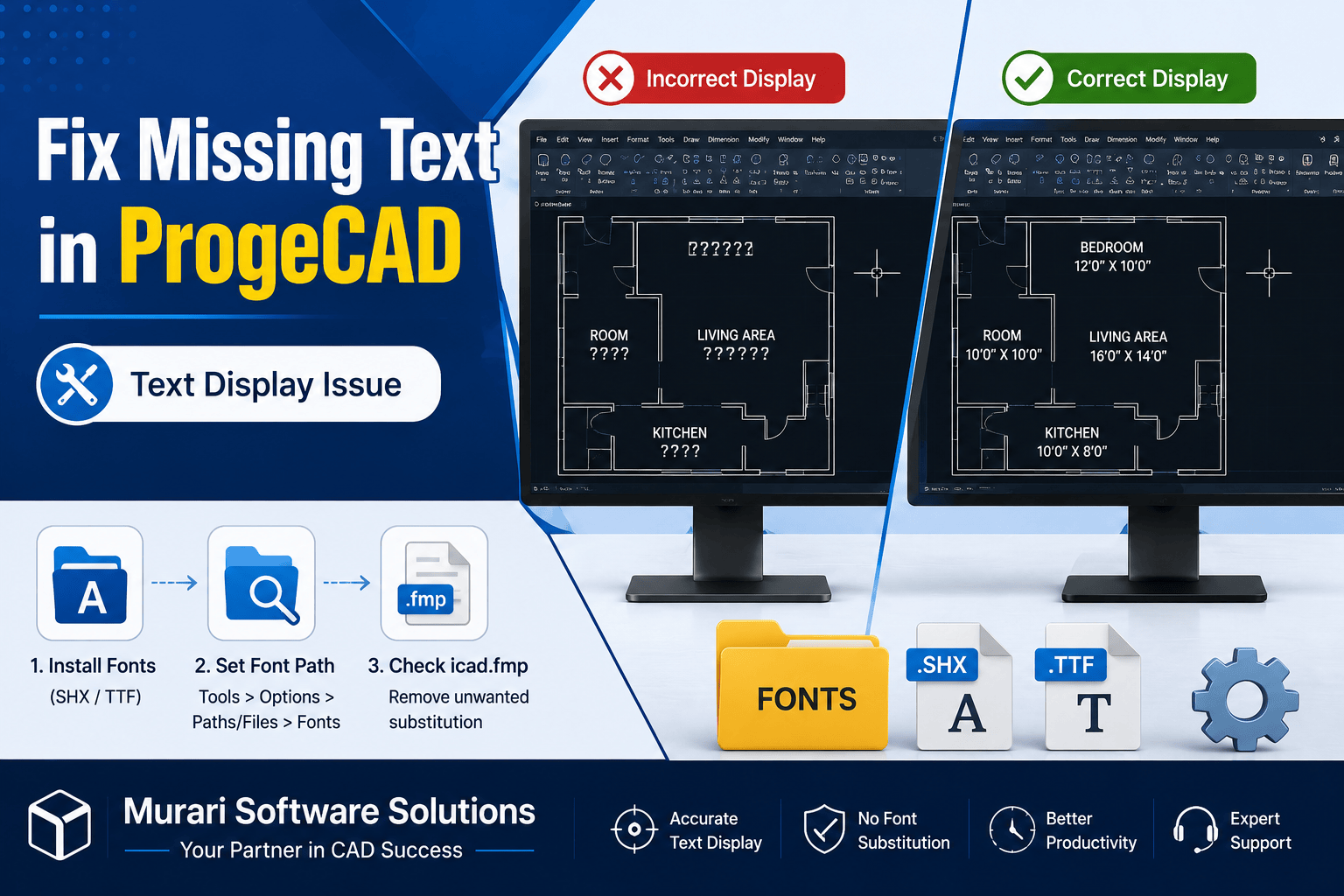
How to Fix Text That Is Not Displayed Properly in ProgeCAD
If some text in your ProgeCAD drawing appears as question marks, incorrect characters, blank spaces, or unexpected fonts, the problem is usually caused by missing font files or incorrect font configuration. This issue commonly occurs when opening DWG files created on another computer or in AutoCAD®.
ProgeCAD supports both SHX fonts and TrueType Fonts (TTF). If the required font is unavailable, the software automatically substitutes another font, which may affect text appearance, spacing, alignment, and readability.
Common Causes
- The required SHX or TTF font is not installed.
- The font folder is missing from the ProgeCAD font search path.
- Automatic font substitution is enabled.
- The drawing uses custom fonts from another workstation.
- The font mapping file contains incorrect substitutions.
Solution 1: Install the Required Fonts
If the drawing creator used custom fonts, copy those SHX or TTF files to your computer and place them inside your preferred font directory.
After installing the fonts, restart ProgeCAD and reopen the drawing.
Solution 2: Verify the Font Search Path
ProgeCAD must know where your font files are stored.
- Open Tools.
- Select Options.
- Open the Paths/Files tab.
- Locate the Fonts section.
- Add the folder containing your SHX or TTF fonts.
- If multiple folders are used, separate each path with a semicolon (;).
- Restart ProgeCAD.
Solution 3: Check Font Substitution
ProgeCAD automatically replaces unavailable fonts using the icad.fmp configuration file.
- Open the User Support Folder from the ProgeCAD Utilities menu.
- Locate the file named icad.fmp.
- Open it using Notepad.
- Search for the font that is displaying incorrectly.
- If the original font is installed, remove the unwanted substitution entry.
- Save the file and restart ProgeCAD.
Example:
romans;ic-romans.shx
Deleting this mapping allows ProgeCAD to use the original romans.shx font instead of its replacement.
Tips to Avoid Font Problems
- Use standard SHX fonts whenever possible.
- Keep project fonts in a shared network folder.
- Install the same fonts on every workstation.
- Avoid deleting custom fonts after project completion.
- Back up your font library before reinstalling Windows or ProgeCAD.
Frequently Asked Questions
Why are some texts missing in my drawing?
Most often, the required font is not installed or ProgeCAD cannot locate the font folder.
Does ProgeCAD support AutoCAD® fonts?
Yes. ProgeCAD supports SHX and TrueType fonts used by AutoCAD®, provided those font files are installed on your computer.
What is icad.fmp?
It is the font substitution file used by ProgeCAD. It automatically maps unavailable fonts to replacement fonts when necessary.
Conclusion
Text display issues in ProgeCAD are usually easy to resolve by installing the correct fonts, configuring the font search path, and reviewing the icad.fmp substitution file. Following these steps ensures that your drawings display exactly as intended and remain compatible across different CAD systems.
If you continue experiencing font or drawing compatibility issues, Murari Software Solutions provides professional ProgeCAD technical support, licensing assistance, software installation, upgrades, and troubleshooting services.