
Text String Shows Wrong Fonts in ProgeCAD? Complete Font Troubleshooting Guide
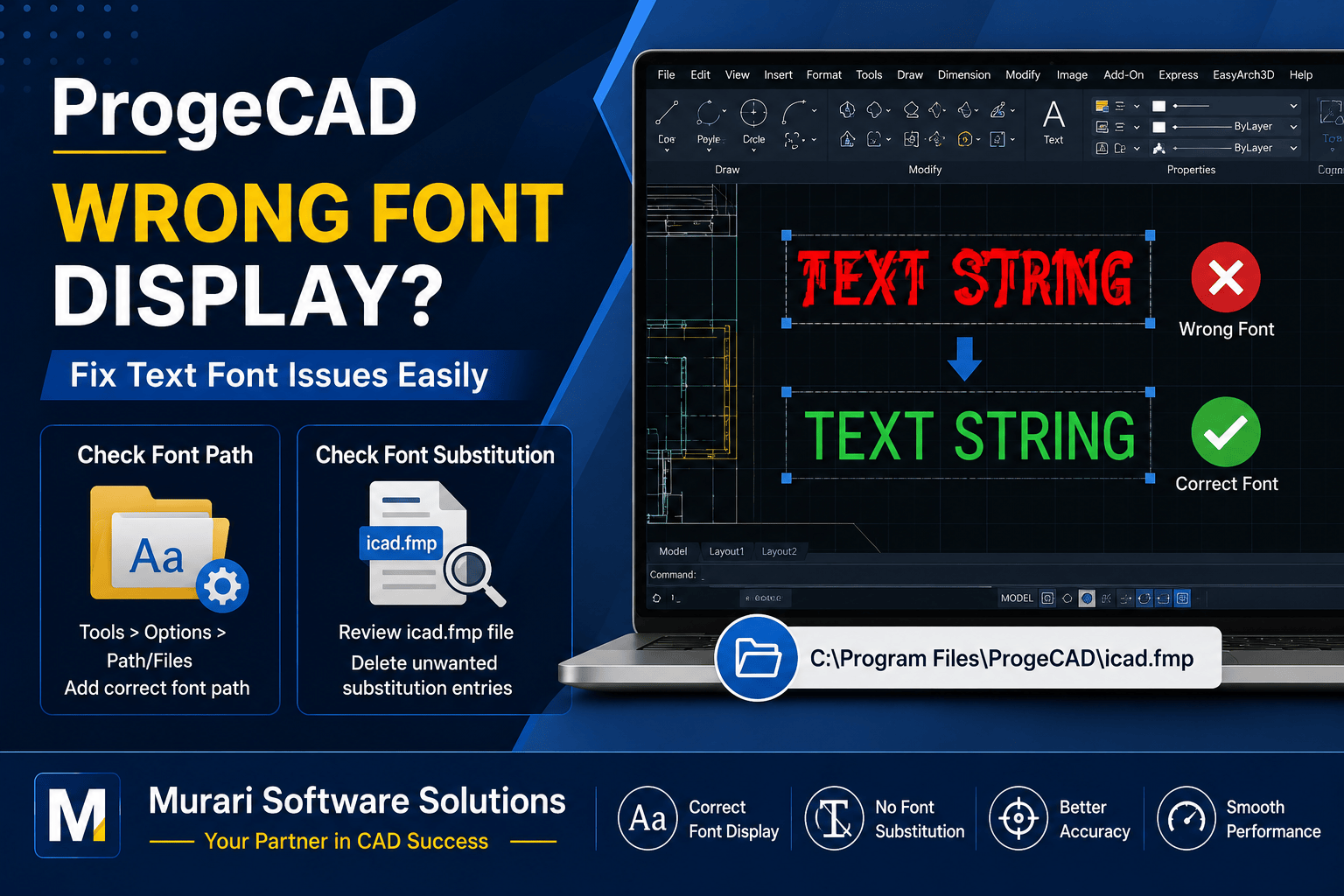
How to Fix Wrong Font Display in ProgeCAD
If text appears with incorrect fonts in ProgeCAD even after copying the required font files to your computer, the issue is usually related to font search paths or automatic font substitution settings. Fortunately, this problem can be resolved in just a few steps.
ProgeCAD supports both SHX fonts and TrueType Fonts (TTF). When the required font cannot be found, the software automatically replaces it with another available font, which can change the appearance, alignment, spacing, and size of the text in your drawing.
Common Reasons for Wrong Fonts
- The required SHX or TTF font is not installed.
- The font folder is not included in the ProgeCAD search path.
- The font has been automatically substituted.
- The drawing was created on another computer using custom fonts.
- The font mapping file contains an incorrect replacement.
Solution 1: Verify the Font Search Path
Ensure that ProgeCAD knows where your font files are stored.
- Open Tools.
- Select Options.
- Open the Path/Files tab.
- Locate the Fonts path.
- Add the folder that contains your SHX or TTF font files.
- You can add multiple font folders if required.
- Restart ProgeCAD and reopen the drawing.
Solution 2: Check Font Substitution
ProgeCAD automatically substitutes missing fonts using the icad.fmp file. If the original font is available but still being replaced, review this file.
- Navigate to the ProgeCAD installation folder.
- Open the icad.fmp file using a text editor.
- Look for entries in the format:
OriginalFont;ReplacementFont
If the original font now exists on your computer, remove the unnecessary substitution entry, save the file, and restart ProgeCAD.
Solution 3: Confirm the Correct Font Files
If the drawing was created in AutoCAD® or another CAD application, it may use custom SHX fonts that are not included with ProgeCAD. Ask the drawing creator to provide the original font files if they are missing.
How to Prevent Font Problems
- Keep all project fonts in a shared folder.
- Use standard SHX fonts whenever possible.
- Avoid deleting font files after completing a project.
- Maintain the same font library across all workstations.
- Back up custom fonts before reinstalling Windows or ProgeCAD.
Frequently Asked Questions
Why is my drawing showing different fonts?
ProgeCAD replaces missing fonts with available alternatives when the original font cannot be found.
Where is the font mapping file located?
The font substitution file is named icad.fmp and is located in the main ProgeCAD installation directory.
Does ProgeCAD support SHX and TrueType fonts?
Yes. ProgeCAD supports both SHX and TTF fonts. For the best compatibility with DWG drawings, ensure that all required fonts are installed.
Conclusion
Wrong font display in ProgeCAD is usually caused by missing fonts, incorrect font search paths, or font substitution settings. By verifying the font directory, reviewing the icad.fmp file, and installing the correct SHX or TrueType fonts, you can restore the drawing to its intended appearance.
If you continue to experience font-related issues, Murari Software Solutions can assist you with ProgeCAD installation, configuration, licensing, upgrades, and technical support.