
ProgeCAD Hardware Acceleration Settings | Improve CAD Graphics Performance
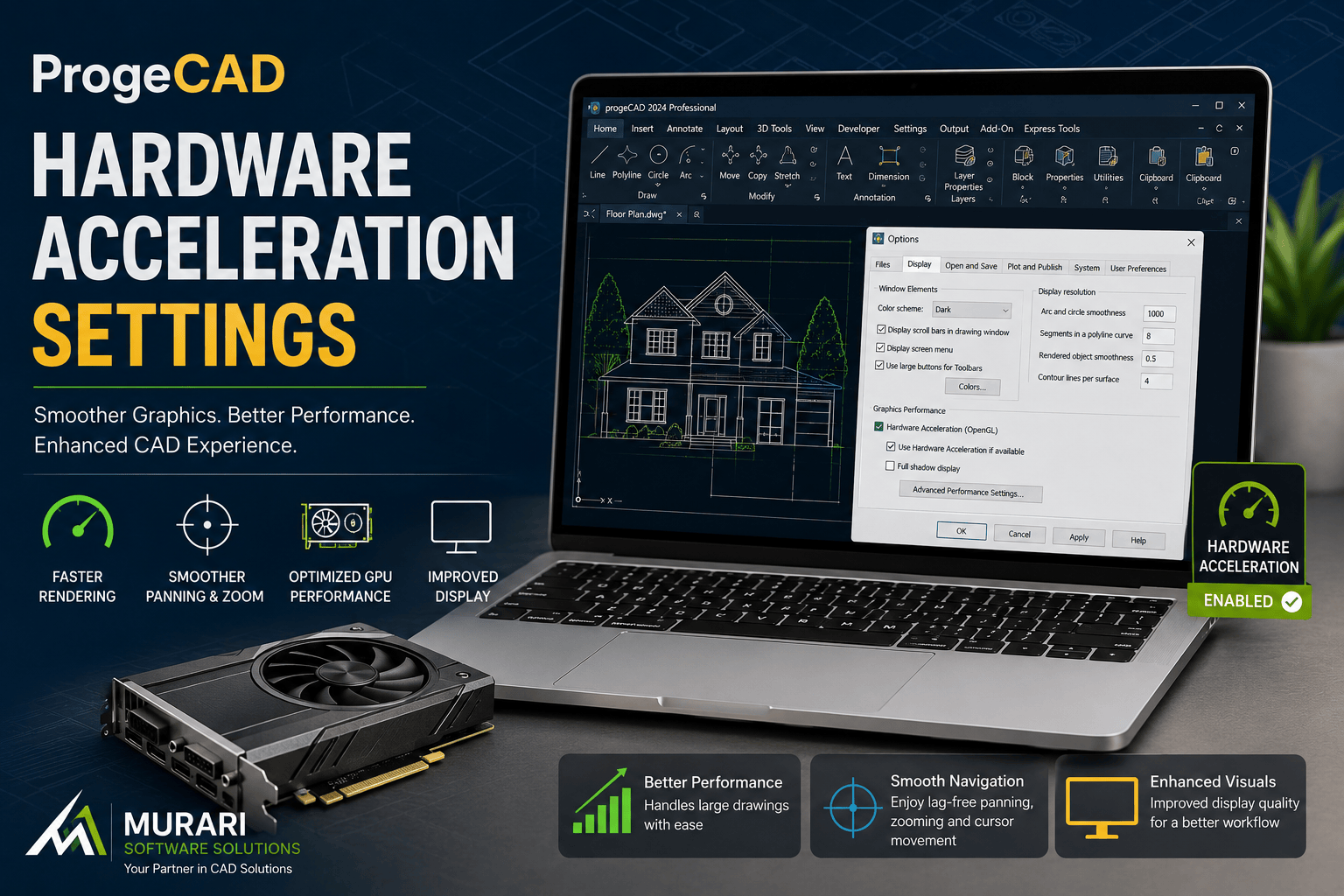
ProgeCAD Hardware Acceleration Settings
ProgeCAD includes Hardware Acceleration support to improve graphics rendering, making common CAD operations such as zooming, panning, object selection, and cursor movement smoother and more responsive. Properly configuring this setting can significantly improve your drafting experience depending on your graphics hardware and operating system.
Over the years, ProgeCAD development has continuously optimized its graphics engine through software updates and patches to deliver improved stability, better compatibility with graphics cards, and enhanced overall performance.
Hardware Acceleration Improvements
One of the major improvements introduced in earlier ProgeCAD updates focused on optimizing graphics display performance. Users experienced smoother navigation while working with large DWG drawings, especially during:
- Zoom In and Zoom Out
- Real-time Panning
- Cursor Movement
- Object Selection
- Drawing Regeneration
- Display Refresh
These improvements reduced lag and made daily drafting operations much more comfortable for CAD professionals.
How to Enable Hardware Acceleration in ProgeCAD
- Open ProgeCAD.
- Click Tools.
- Select Options.
- Open the Display or Graphics settings.
- Locate the Hardware Acceleration option.
- Enable or disable the setting depending on your graphics hardware.
- Restart ProgeCAD if required.
When Should Hardware Acceleration Be Enabled?
If your computer has a modern graphics processor (GPU) with updated drivers, enabling Hardware Acceleration generally provides:
- Faster drawing display
- Smoother panning and zooming
- Improved 2D and 3D navigation
- Better viewport performance
- Reduced screen flickering
- Enhanced rendering speed
When Should It Be Disabled?
Some older graphics cards or outdated display drivers may not fully support advanced graphics rendering. If you notice any of the following issues, try disabling Hardware Acceleration:
- Screen flickering
- Black display areas
- Slow graphics refresh
- Random application freezing
- Graphic artifacts
- Viewport display problems
After disabling the option, restart ProgeCAD and verify whether the display performance has improved.
Recommended Graphics Settings
For the best ProgeCAD experience:
- Install the latest graphics card drivers from NVIDIA, AMD, or Intel.
- Keep Windows fully updated.
- Use the latest ProgeCAD service packs and patches.
- Enable Hardware Acceleration only if your graphics hardware supports it.
- Close unnecessary background applications while working with large drawings.
- Use SSD storage for improved file loading performance.
User Experience
Many ProgeCAD users have reported noticeable improvements in graphics performance after installing the latest software updates. Smoother zooming, responsive cursor movement, and faster display regeneration help improve productivity during day-to-day drafting work.
Graphics performance can vary depending on your operating system, graphics card, driver version, and the complexity of the drawing. Keeping both ProgeCAD and your graphics drivers updated ensures the best possible experience.
Need Technical Assistance?
Murari Software Solutions provides professional support for ProgeCAD installation, graphics configuration, hardware acceleration settings, software updates, licensing, and technical troubleshooting. If you experience display issues or want to optimize ProgeCAD for maximum performance, our technical team is ready to assist you.
How to Change Hardware Acceleration Settings in ProgeCAD
If you experience slow graphics performance, screen flickering, or display issues while working with ProgeCAD, adjusting the Hardware Acceleration setting may improve stability and performance.
- Open ProgeCAD.
- Go to Tools > Options.
- Click the Display tab.
- Find the Display Performance section.
- Enable or disable the Hardware Acceleration option depending on your graphics hardware.
- Click OK to save the settings.
- Restart ProgeCAD to apply the changes.
Computers with dedicated NVIDIA or AMD graphics cards usually perform better with Hardware Acceleration enabled. Systems using integrated or older graphics hardware may perform better with Hardware Acceleration disabled if you notice slow zooming, panning, cursor lag, or display issues.
For the best performance, install the latest graphics drivers and use the latest version or service pack of ProgeCAD.