
How to Check Your ProgeCAD Version | Murari Software Solutions
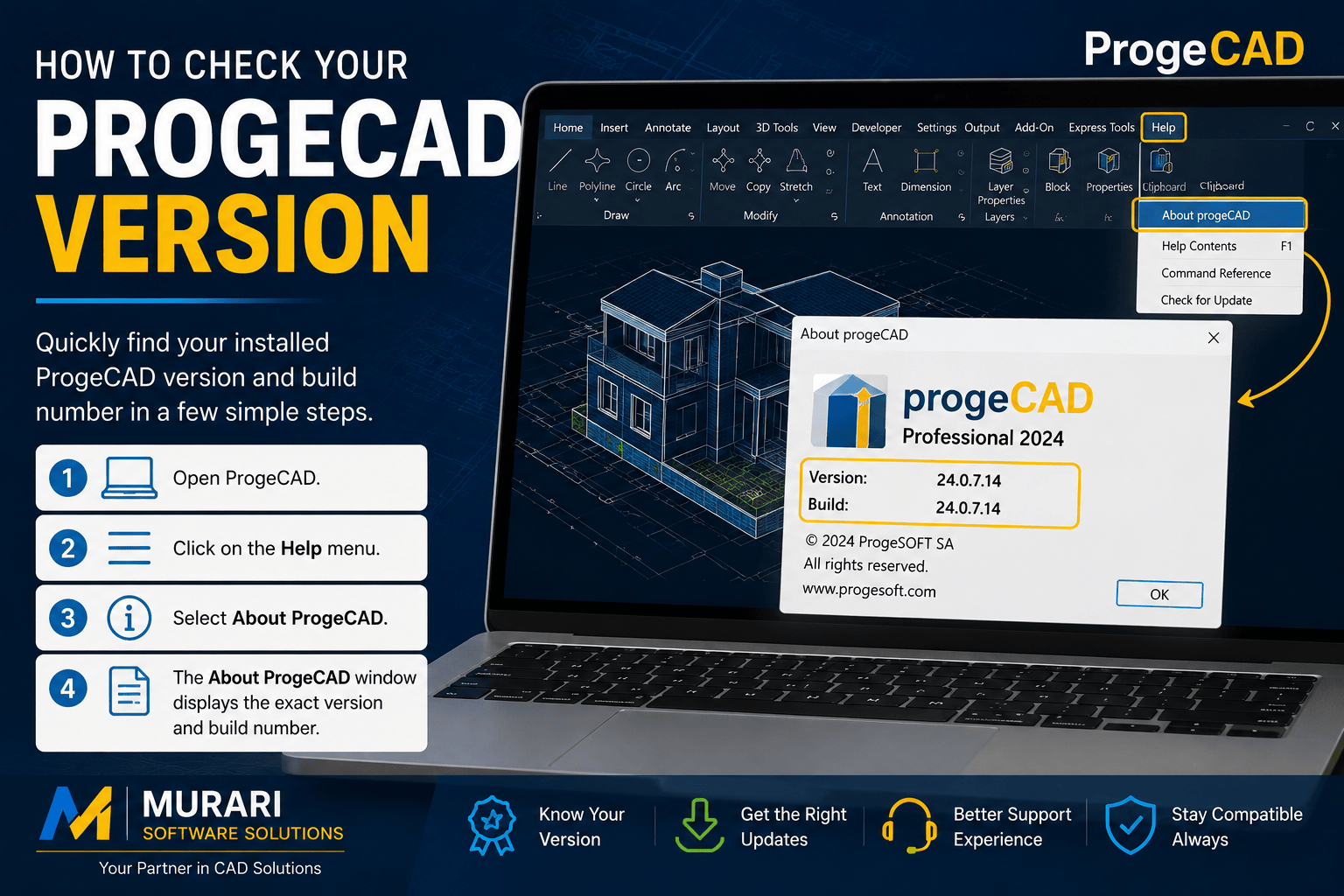
How to Check Your ProgeCAD Version
Knowing your ProgeCAD version is important when installing updates, downloading service packs, requesting technical support, or checking compatibility with drawings and plugins. Whether you are using an older edition or the latest release, you can quickly identify your installed version by following the steps below.
Steps to Find the Installed ProgeCAD Version
- Open ProgeCAD.
- Click the Help menu from the top menu bar.
- Select About ProgeCAD.
- A dialog box will appear showing:
- Product name
- Version number
- Build number
- License information
The version displayed in the About ProgeCAD window is the exact version installed on your computer. If you have recently installed an update or service pack, the build number will also reflect the latest installed update.
Why Knowing Your ProgeCAD Version Matters
- Download the correct updates and service packs.
- Verify compatibility with DWG drawing files.
- Receive accurate technical support.
- Check eligibility for upgrades.
- Troubleshoot installation or licensing issues.
- Confirm compatibility with plugins and third-party applications.
When Should You Check Your Version?
It is recommended to verify your ProgeCAD version before downloading updates, contacting technical support, migrating to a new computer, reinstalling the software, or opening drawings created in newer releases.
Need Help with ProgeCAD?
If you are unsure whether your installation is up to date or need assistance with upgrades, licensing, activation, or technical support, contact Murari Software Solutions. Our team can help you identify your installed version and recommend the appropriate update or upgrade for your requirements.