
How to Create a Custom Paper Size in ProgeCAD | Printing Setup Guide
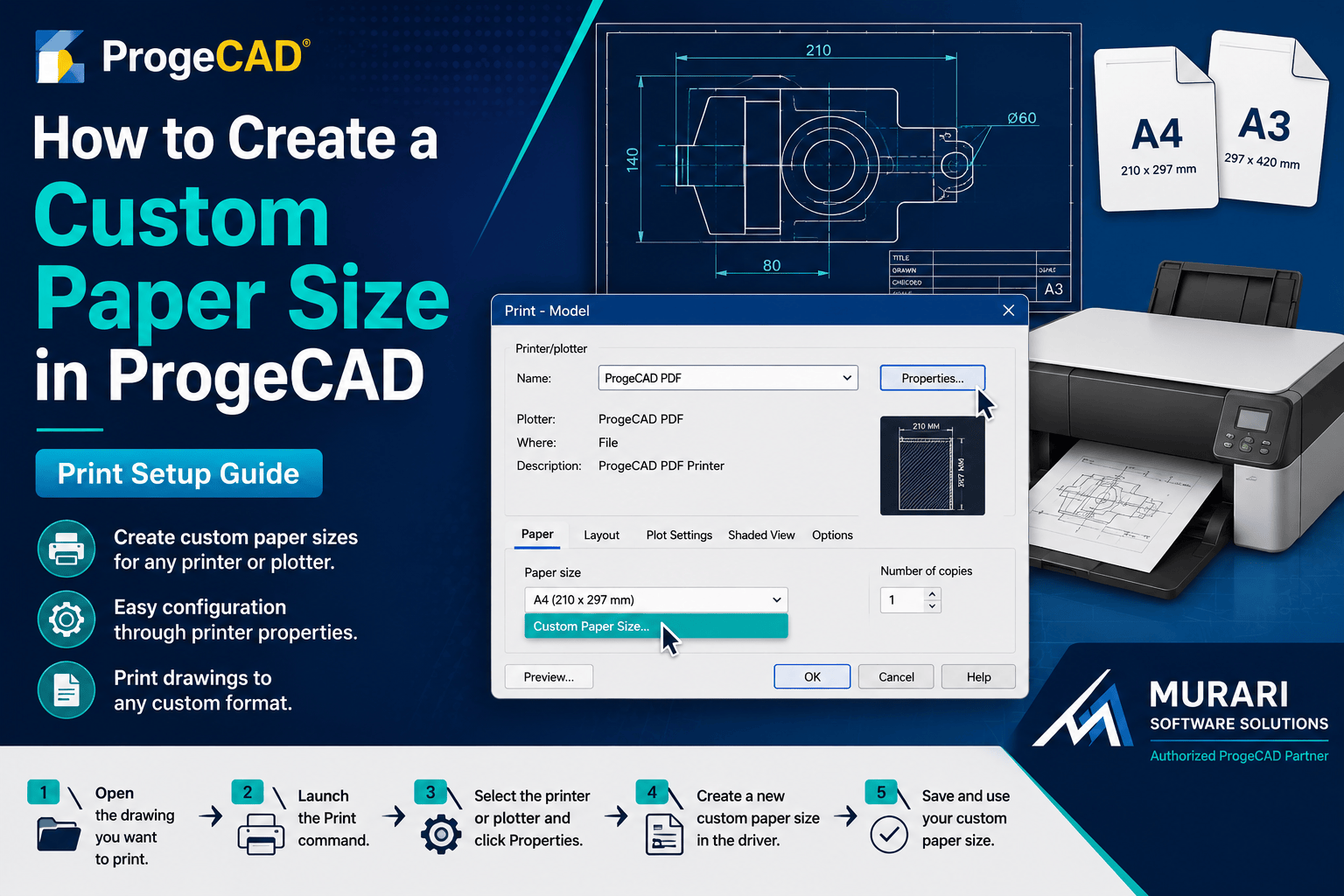
How to Create a Custom Paper Size in ProgeCAD
When printing drawings in ProgeCAD, you may occasionally need a paper size that is not available in your printer's default list. This is common when working with engineering drawings, architectural layouts, or custom sheet sizes.
ProgeCAD uses the printer or plotter driver installed on your computer to determine the available paper formats. Therefore, custom paper sizes must usually be created within the printer driver's settings.
Steps to Create a Custom Paper Size
Open the drawing that you want to print.
Launch the Print (Plot) command from ProgeCAD.
Select your printer, plotter, or PDF output device.
Click the Properties button next to the selected printing device.
The printer driver's configuration window will open. If your printer supports custom paper sizes, you can create a new page size from this dialog.
Save the new paper size and return to ProgeCAD. Your custom format should now be available in the paper size list.
If the Custom Size Is Not Saved
Some printer drivers do not allow custom page sizes to be created directly from CAD software.
In this case, open the Windows Control Panel, go to Devices and Printers, select your printer, and create the custom paper size from the printer's preferences or server properties.
After saving the new paper format, restart ProgeCAD if necessary and open the Print dialog again.
Tips
Always use the latest printer driver provided by the manufacturer. Updated drivers generally offer better support for custom paper sizes and plotting features.
If you frequently print technical drawings, consider creating multiple custom paper sizes for different project requirements.
Conclusion
Creating a custom paper size in ProgeCAD is straightforward once the printer driver supports it. By configuring your printer correctly, you can print drawings on custom sheet sizes without scaling or formatting issues.