
How to Display Line Thickness in ProgeCAD | Enable Lineweight Display
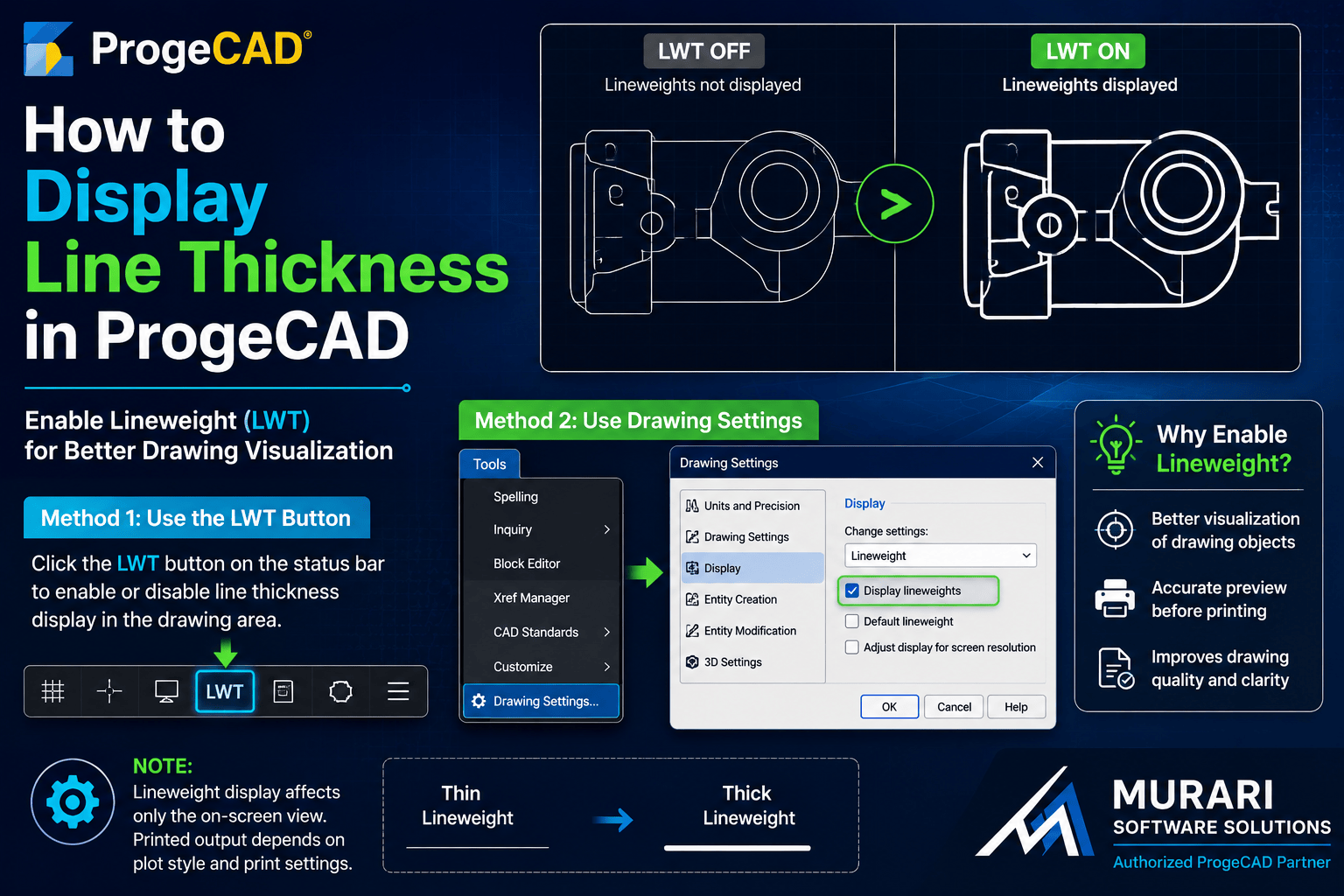
How to Display Line Thickness in ProgeCAD
Line thickness, also known as lineweight, helps differentiate objects in a CAD drawing and provides a more accurate preview before printing. If your drawing appears with uniform thin lines, the lineweight display may simply be turned off.
Method 1: Use the LWT Button
The quickest way to enable or disable line thickness is by using the LWT (Lineweight) button located on the ProgeCAD status bar.
Click the LWT button once to turn lineweight display on or off. When enabled, objects are displayed using their assigned line thickness in the drawing workspace.
Method 2: Enable Lineweight from Drawing Settings
You can also control lineweight display from the Drawing Settings dialog.
Open the Tools menu and select Drawing Settings.
Navigate to the Display section and locate the Lineweight settings.
Enable the option Display Lineweights and click OK to save the changes.
Why Line Thickness May Not Be Visible
If lineweights still do not appear, verify that your drawing objects have a lineweight assigned. Objects using the default lineweight may appear identical until a specific value is applied.
Also remember that lineweight display affects only the on-screen view. The actual printed output depends on your plot style, printer configuration, and print settings.
Conclusion
Displaying line thickness in ProgeCAD is simple using either the LWT button or the Drawing Settings dialog. Enabling lineweight display allows you to review your drawings more accurately before plotting and ensures your design appears exactly as intended.