
How to Uninstall ProgeCAD Safely (Complete Guide)
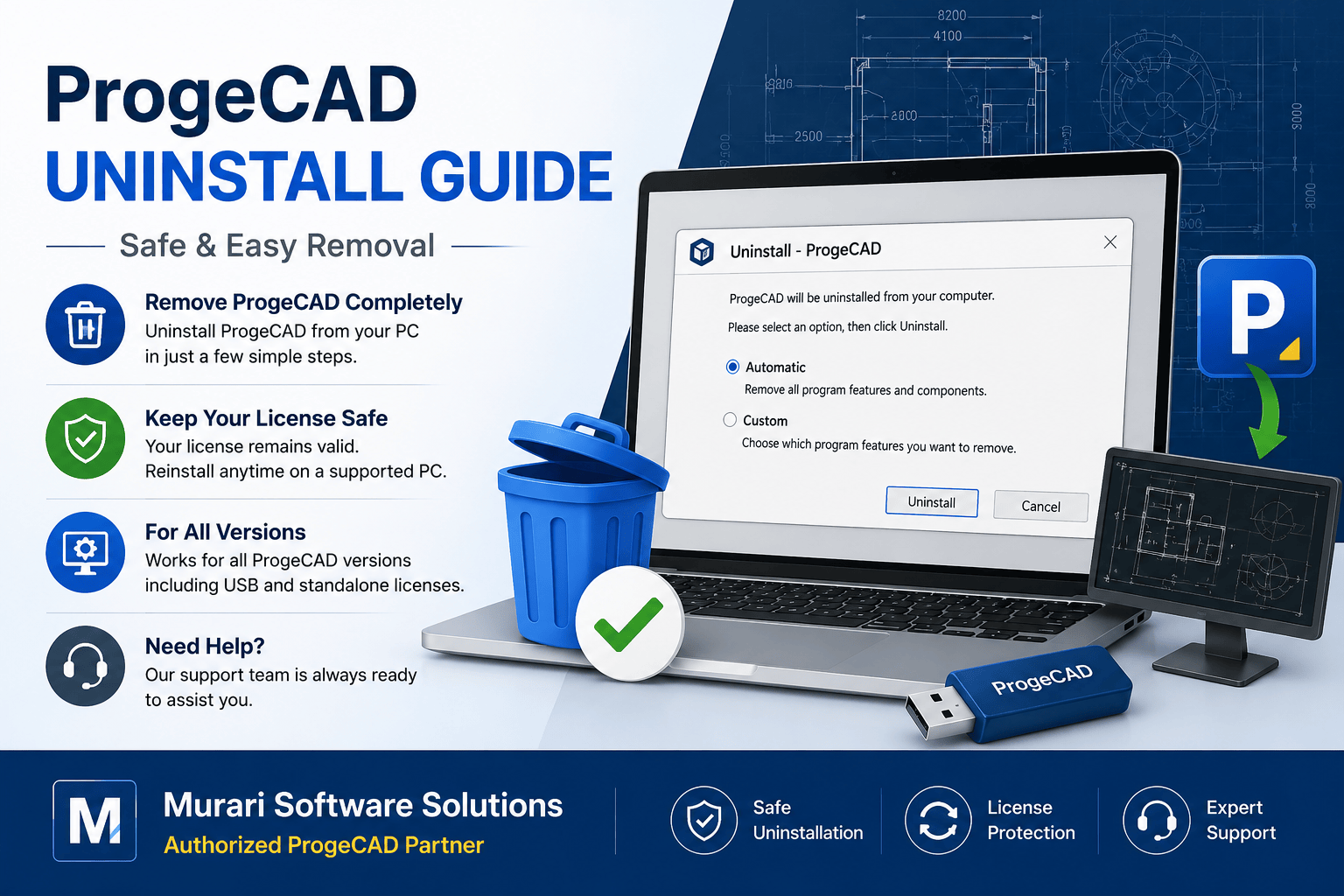
How to Uninstall ProgeCAD Safely
If you plan to remove ProgeCAD from your computer before reinstalling it, upgrading to a newer version, or transferring your license to another PC, it is important to follow the correct uninstallation procedure. This ensures that your license remains valid and helps avoid activation issues in the future.
Before You Uninstall
Before removing ProgeCAD, save all open drawings and close the application. If you are planning to move your license to another computer, make sure you have your serial number and activation details available.
How to Uninstall ProgeCAD
- Close ProgeCAD and any related applications.
- Open the Windows Control Panel or Settings > Apps.
- Select ProgeCAD from the installed applications list.
- Click Uninstall and follow the on-screen instructions.
- Select the Automatic uninstall option when prompted.
- Restart your computer after the process is complete.
For Older ProgeCAD Versions
If you are using ProgeCAD 2007 or earlier (non-USB license), the uninstall process may display an Uninstall Code (LTC). Save this code carefully because it may be required if you reinstall or transfer the license to another computer.
USB License Users
If your ProgeCAD license uses a USB hardware key (dongle), simply uninstall the software. The USB license remains stored on the hardware key and can be used after reinstalling ProgeCAD on another supported computer.
After Uninstallation
- Restart your computer.
- Install the latest version of ProgeCAD if required.
- Reactivate the software using your serial number.
- Restore your custom settings or templates if you previously backed them up.
Need Help?
If you encounter activation errors, uninstall problems, or need assistance transferring your license to a new computer, contact the Murari Software Solutions support team. We can guide you through the correct licensing and installation process.