
How to Use AutoCAD® Fonts in ProgeCAD | SHX Font Setup Guide
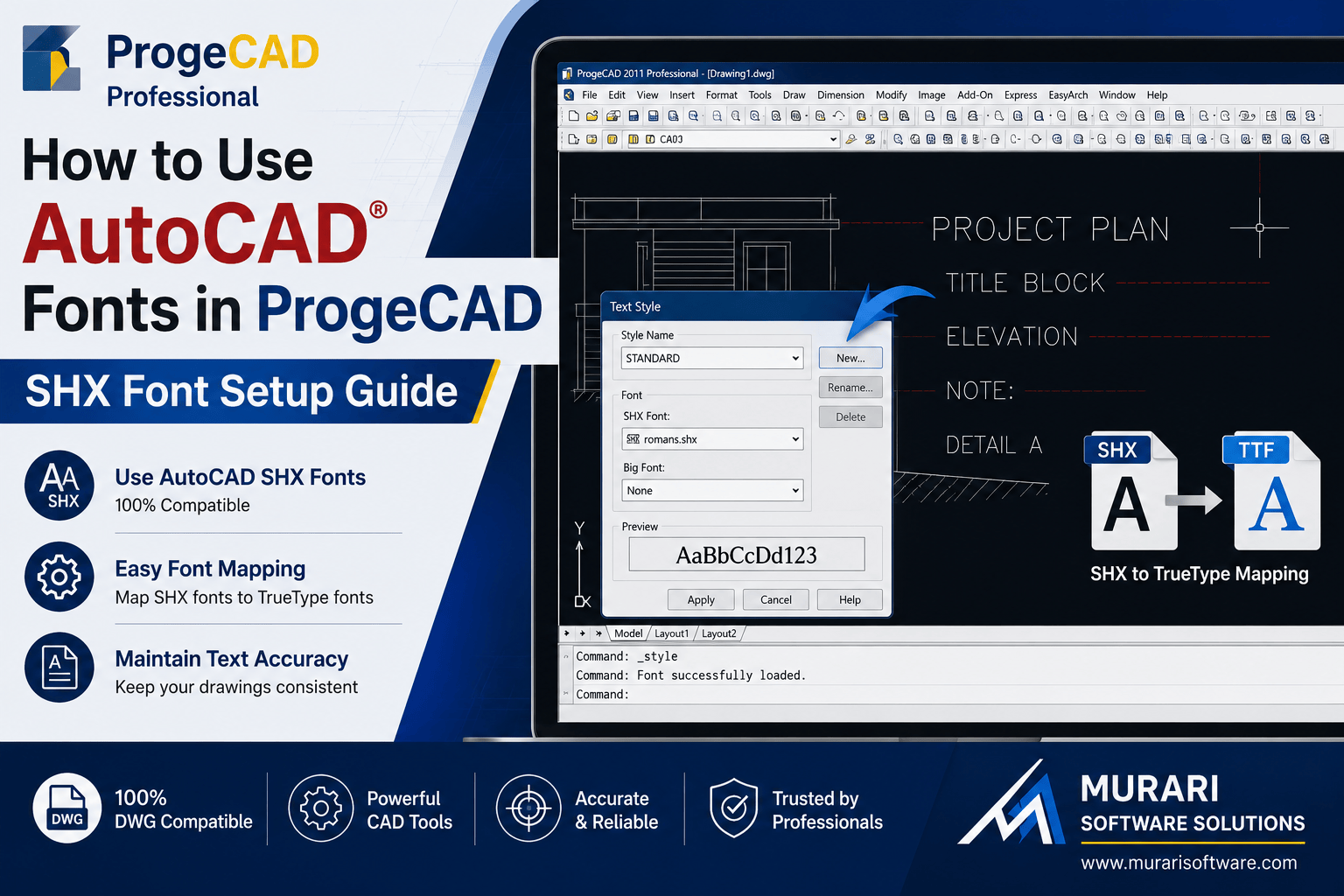
How to Use AutoCAD® Fonts in ProgeCAD
When opening DWG files created in AutoCAD®, you may notice that some text does not display correctly because the required SHX font files are missing. Fortunately, ProgeCAD fully supports AutoCAD® SHX fonts, allowing you to use the same fonts and maintain drawing compatibility without modifying the original files.
This guide explains how to configure AutoCAD® fonts in ProgeCAD, set font search paths, and use font mapping to avoid missing font warnings.
Can ProgeCAD Use AutoCAD® Fonts?
Yes. ProgeCAD is compatible with AutoCAD® SHX font files. If AutoCAD® is already installed on your computer, ProgeCAD can automatically detect the font folder during installation. If not, you can manually add the font directory.
How to Add AutoCAD® Font Paths in ProgeCAD
- Open Tools.
- Select Options.
- Open the File Paths section.
- Locate the Fonts path.
- Add the folder where your AutoCAD® SHX fonts are stored.
- Save the settings and restart ProgeCAD if necessary.
Typical font locations may include:
- C:\Program Files\Autodesk\AutoCAD®\Fonts
- C:\Program Files\Autodesk\AutoCAD®\Support
What is Font Mapping?
Font mapping allows ProgeCAD to replace unavailable fonts with alternative fonts. This feature is controlled by the ICAD.FMP file, which contains font substitution rules.
For example:
romanc.shx;IC-romans.shx
This tells ProgeCAD to use IC-romans.shx whenever romanc.shx is unavailable.
How to Disable Font Substitution
If you have the original AutoCAD® SHX fonts installed, you may not want ProgeCAD to substitute them.
Open the ICAD.FMP file with a text editor and remove or comment out the relevant mapping.
Example:
simplex;IC-simplex.shx
Change it to:
;simplex;IC-simplex.shx
Save the file and restart ProgeCAD. The software will now use the original simplex.shx font instead of the replacement.
Benefits of Using Original AutoCAD® Fonts
- Maintain the original appearance of DWG drawings.
- Avoid unexpected font substitutions.
- Improve compatibility when sharing drawings.
- Reduce formatting differences between CAD platforms.
- Ensure accurate text display in technical drawings.
Troubleshooting Missing Fonts
If text is still displayed incorrectly after adding the font path:
- Verify the SHX font files exist in the specified folder.
- Check that the folder has been added correctly in File Paths.
- Review the ICAD.FMP file for unwanted font substitutions.
- Restart ProgeCAD after making configuration changes.
Conclusion
ProgeCAD provides excellent compatibility with AutoCAD® SHX fonts, making it easy to work with existing DWG drawings. By adding the correct font paths and configuring font mapping when necessary, you can ensure that drawings display exactly as intended and avoid missing font issues during collaboration.