
How to Use the QSELECT Filter Command in ProgeCAD
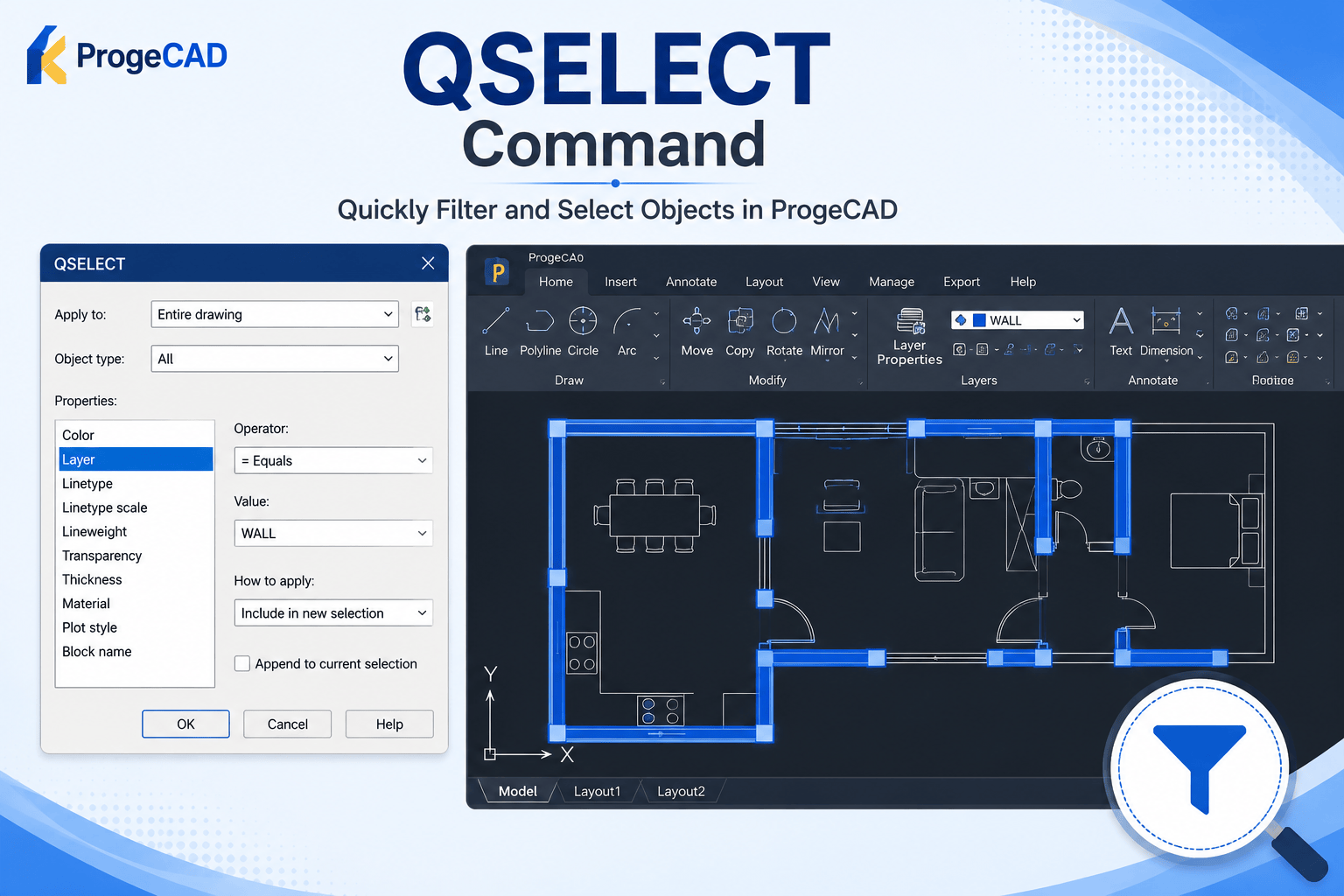
How to Use the QSELECT Filter Command in ProgeCAD
The QSELECT (Quick Select) command in ProgeCAD allows you to quickly select objects based on specific properties such as object type, layer, color, line type, or other attributes. It is one of the fastest ways to work with large drawings without manually selecting every object.
Steps to Use the QSELECT Command
- Open your drawing in ProgeCAD.
- Ensure the drawing contains objects to filter.
- Type QSELECT in the command line and press Enter.
- Select the object type or property you want to filter.
- Choose the required criteria such as Layer, Color, Line Type, or Block Name.
- Click OK to automatically select all matching objects.
Common Uses of QSELECT
- Select all objects on a specific layer.
- Find all circles, lines, text, or blocks.
- Select objects with the same color or line type.
- Edit multiple objects simultaneously.
- Clean up and organize complex drawings quickly.
Tips for Better Productivity
The QSELECT command is especially useful when working with large architectural, mechanical, or structural drawings. Instead of manually selecting hundreds of entities, you can instantly isolate the required objects and perform editing operations such as move, delete, copy, or modify properties.
Need Help with ProgeCAD?
Murari Software Solutions is an authorized ProgeCAD distributor in India, providing licensing, technical support, installation assistance, and CAD training. Contact our team if you need help using ProgeCAD commands or optimizing your CAD workflow.