
How to Increase Pickbox Size in ProgeCAD
How to Increase Pickbox Size in ProgeCAD
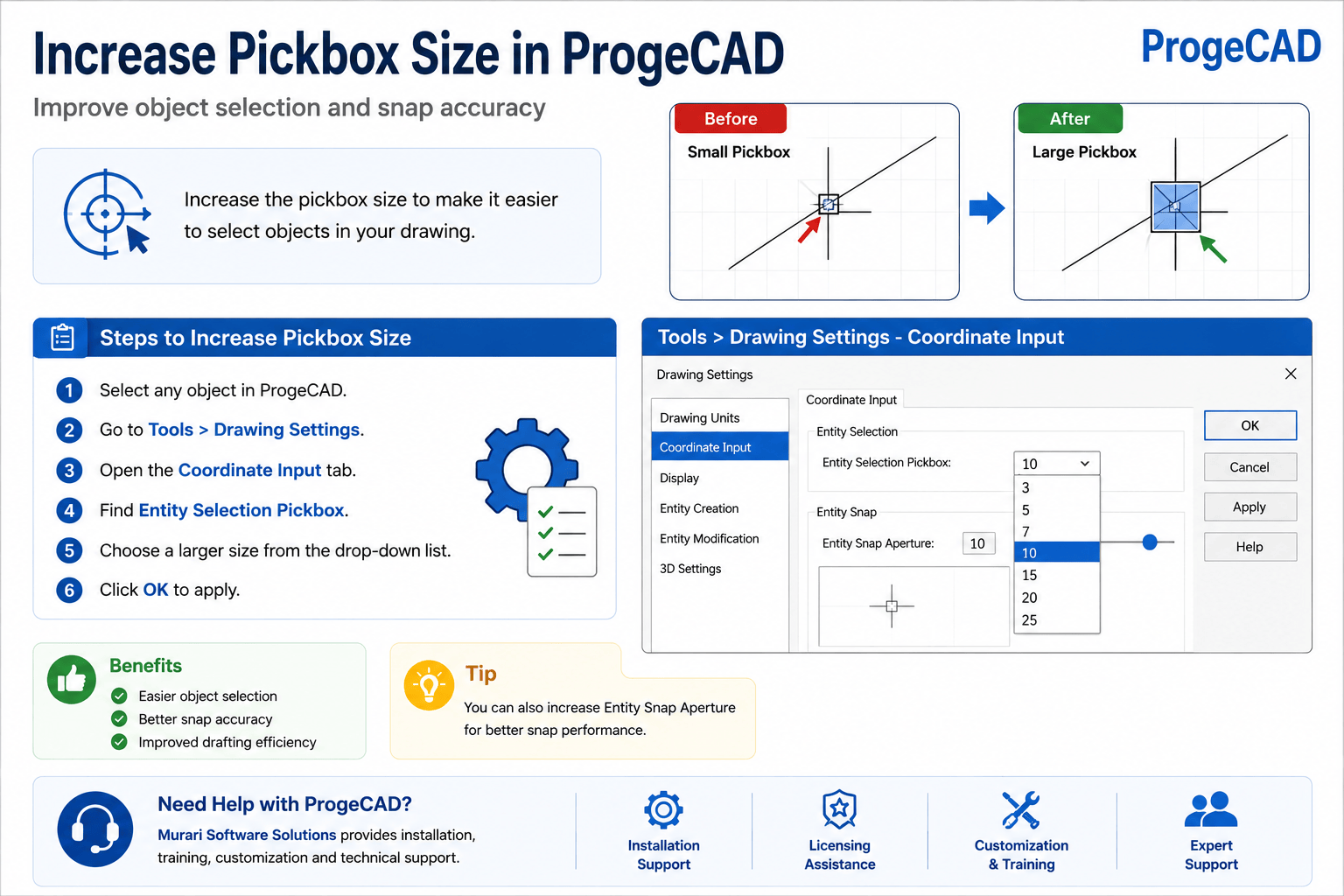
If selecting objects in ProgeCAD feels difficult because the cursor pickbox is too small, you can easily increase its size through the drawing settings. A larger pickbox improves selection accuracy, especially when working with complex CAD drawings or high-resolution displays.
Steps to Increase the Pickbox Size
- Open ProgeCAD.
- Select any object in the drawing.
- Go to Tools > Drawing Settings.
- Open the Coordinate Input tab.
- Locate the Entity Selection Pickbox option.
- Select a larger pickbox size from the drop-down list.
- Click OK to save the changes.
Adjust the Snap Aperture
You can also increase the Entity Snap Aperture. A larger snap aperture makes it easier to snap to endpoints, midpoints, centers, and other object snap locations, improving drafting precision.
Benefits of Increasing the Pickbox Size
- Improves object selection accuracy.
- Makes it easier to work on detailed drawings.
- Reduces accidental object selection.
- Provides a better experience on high-resolution monitors.
- Helps new users work more comfortably with CAD drawings.
Additional Tips
If object selection is still difficult after increasing the pickbox size, adjust your object snap settings, zoom level, and display options. Keeping your graphics drivers updated and using the latest version of ProgeCAD can also improve overall performance.
Need Help with ProgeCAD?
Murari Software Solutions provides professional support for ProgeCAD, including installation, licensing, customization, training, and technical assistance. Contact us if you need help configuring ProgeCAD for maximum productivity.