
How to Install Extra Fonts in ProgeCAD | Fix Missing SHX & TTF Fonts
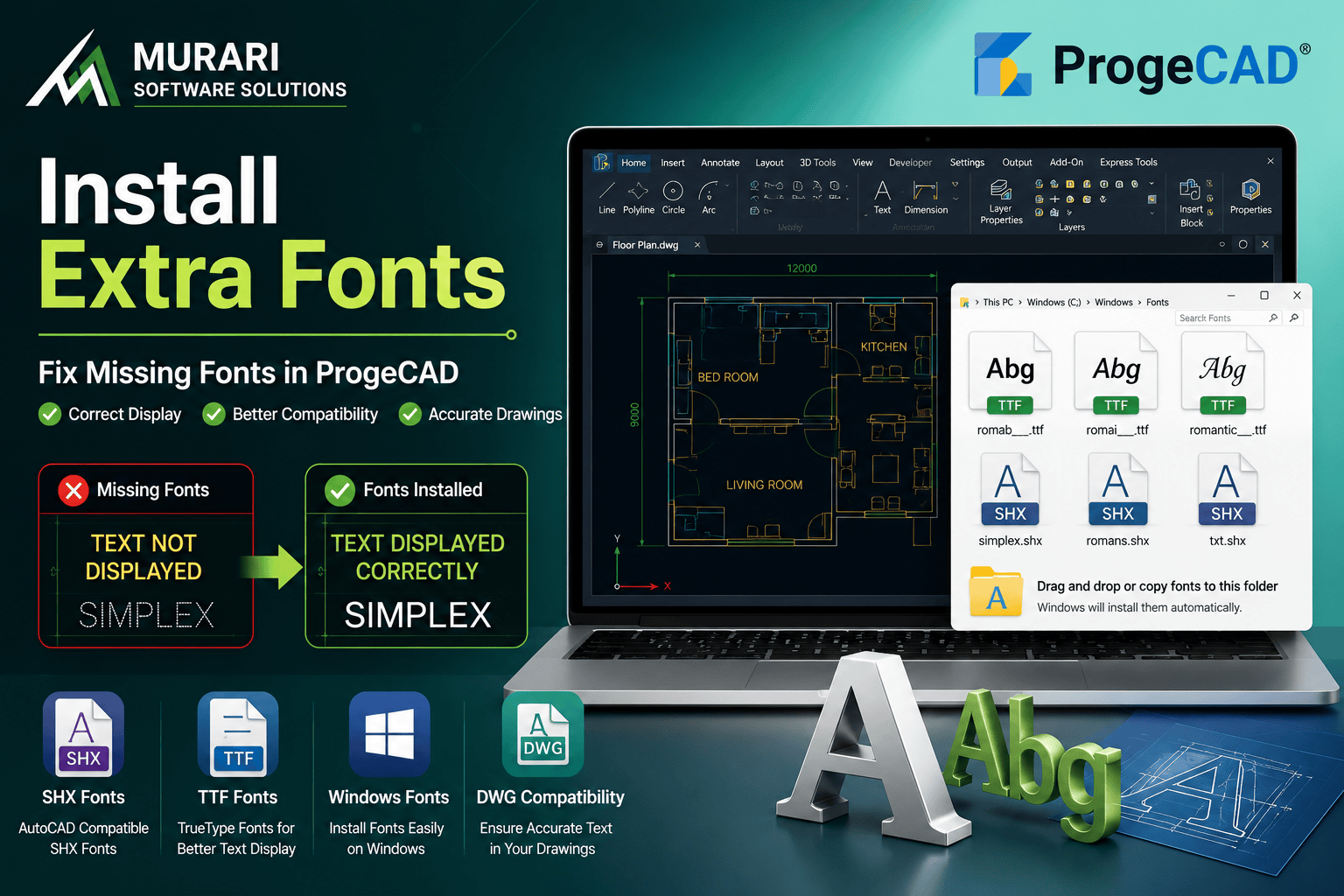
How to Install Extra Fonts in ProgeCAD on Windows
If text in your DWG drawings is not displaying correctly, the most common reason is that the required fonts are not installed on your Windows system. ProgeCAD uses the fonts available in Windows, so any missing SHX or TrueType (TTF) fonts can cause text to appear incorrectly or be substituted with another font.
To ensure your drawings display exactly as intended, install all fonts used by the original drawing. This is especially important when opening files created in AutoCAD® or other CAD software.
Common Missing Fonts
You may encounter missing fonts such as:
romab___.ttf
romai___.ttf
romantic___.ttf
Other custom SHX or TTF fonts may also be required depending on the drawing.
How to Install Missing Fonts
Step 1: Download or obtain the required font files.
Step 2: Right-click each font file and select Install.
Step 3: Alternatively, copy the font files into the Windows Fonts folder.
Step 4: Restart ProgeCAD so the newly installed fonts are loaded.
Why Fonts Are Important
When a drawing references fonts that are unavailable on your computer, Windows substitutes another font automatically. This may change text size, spacing, symbols, and overall drawing appearance. Installing the original fonts ensures the drawing looks exactly as it was created.
Using AutoCAD® Fonts in ProgeCAD
ProgeCAD fully supports AutoCAD® SHX fonts. If you have a licensed AutoCAD® installation, you can also configure ProgeCAD to use those font files for maximum compatibility with existing DWG drawings.
Need Help?
If your drawings still show missing text or font substitution after installing the fonts, our support team can help you identify the required font files and configure ProgeCAD correctly.