
Blog · 08-Oct-2025
How to Move a ProgeCAD License to a New Computer
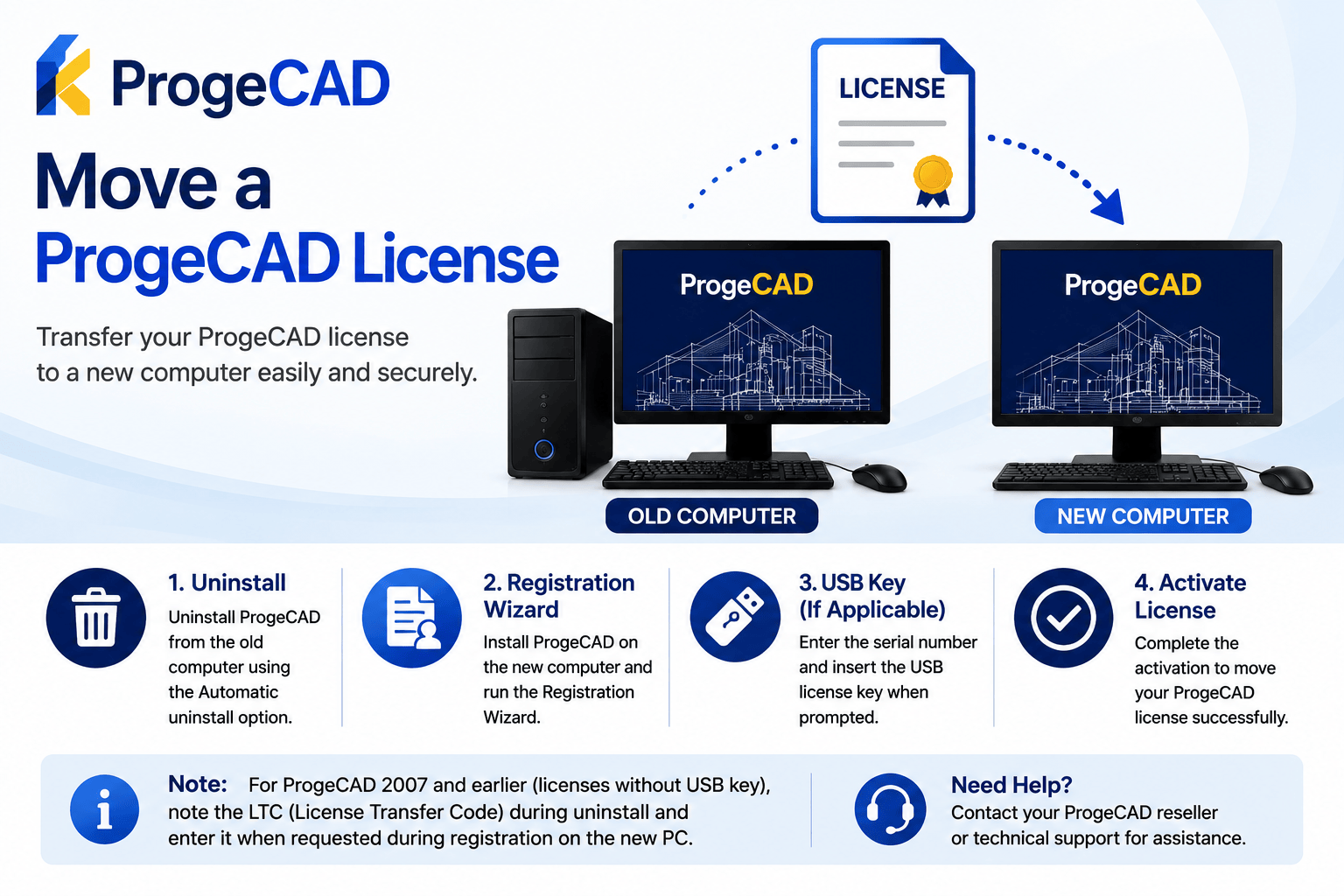
How to Move a ProgeCAD License to a New Computer
If you are replacing your computer or upgrading your hardware, you can transfer your ProgeCAD license by following the correct license migration procedure. The steps vary depending on your ProgeCAD version and whether your license uses a USB hardware key.
For ProgeCAD 2008 and Later
Licenses Without a USB Key
- Uninstall ProgeCAD from the current computer.
- Select the Automatic uninstall option when prompted.
- Install ProgeCAD on the new computer.
- Run the Registration Wizard.
- Complete the activation process to receive a new authorization code.
Licenses With a USB Key
- Install ProgeCAD on the new computer.
- Start the registration process.
- Enter your serial number.
- Insert the USB license key when prompted.
- Complete the activation.
For ProgeCAD 2007 and Earlier
Licenses Without a USB Key
- Uninstall ProgeCAD using the Automatic uninstall option.
- During uninstall, note the LTC (License Transfer Code).
- Install ProgeCAD on the new computer.
- Start the Registration Wizard.
- Select that the software has been previously registered.
- Enter the saved LTC code when requested.
- Complete the registration to receive a new authorization code.
Licenses With a USB Key
- Install ProgeCAD on the new computer.
- Enter your serial number during registration.
- Insert the USB license key when prompted.
- Finish the activation process.
Important Notes
- Always uninstall ProgeCAD from the old computer before activating it on a new one.
- Keep your serial number and registration details available.
- Users of older versions should safely store the LTC code during the uninstall process.
- If you experience activation issues, contact your ProgeCAD reseller or technical support.