
How to Print Line Thickness Correctly in ProgeCAD
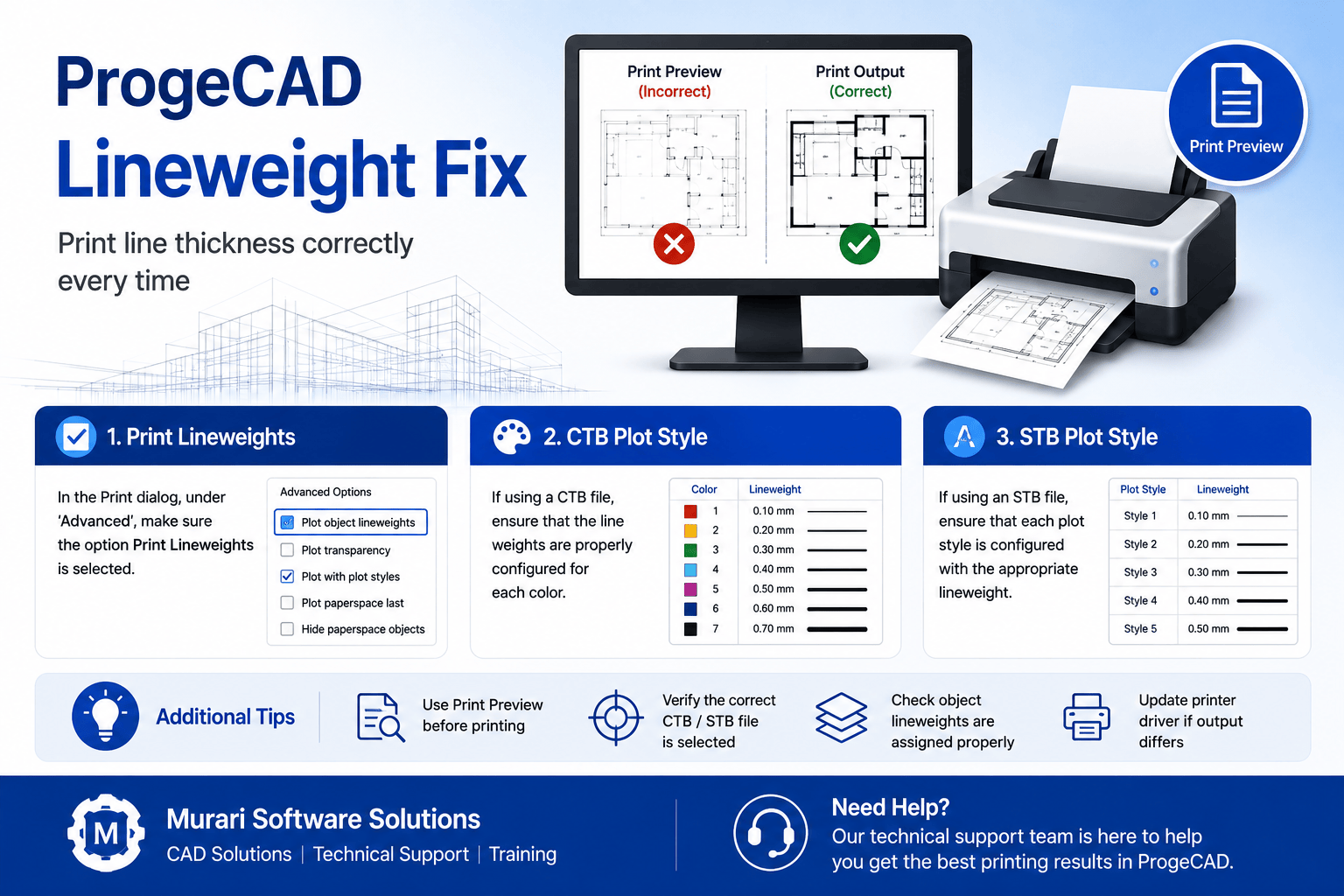
How to Fix Incorrect Line Thickness in ProgeCAD Print Preview
If line thickness is not displayed correctly in ProgeCAD print preview or on printed drawings, the issue is usually related to the print settings or plot style configuration. Follow the steps below to ensure lineweights are printed correctly.
Enable Print Lineweights
Open the Print dialog and make sure the Print Lineweights option is enabled under the Advanced print settings. If this option is disabled, all objects may print with the same line thickness.
Check CTB Plot Style Files
If your drawing uses a CTB plot style file, verify that each color is assigned the correct lineweight. Incorrect CTB settings can cause lines to print thinner or thicker than expected.
Check STB Plot Style Files
If your drawing uses an STB plot style file, ensure each plot style is configured with the appropriate lineweight. Save the changes before printing again.
Additional Tips
- Use Print Preview before printing.
- Verify that the correct CTB or STB file is selected.
- Check that object lineweights are assigned properly.
- Update your printer driver if print output differs from the preview.
Need Help?
If lineweights are still incorrect after checking the print settings, contact the Murari Software Solutions support team. We can help you troubleshoot ProgeCAD printing, CTB/STB configuration, and plot style issues.