
Printing and Plotting Problems in progeCAD – Common Issues & Solutions
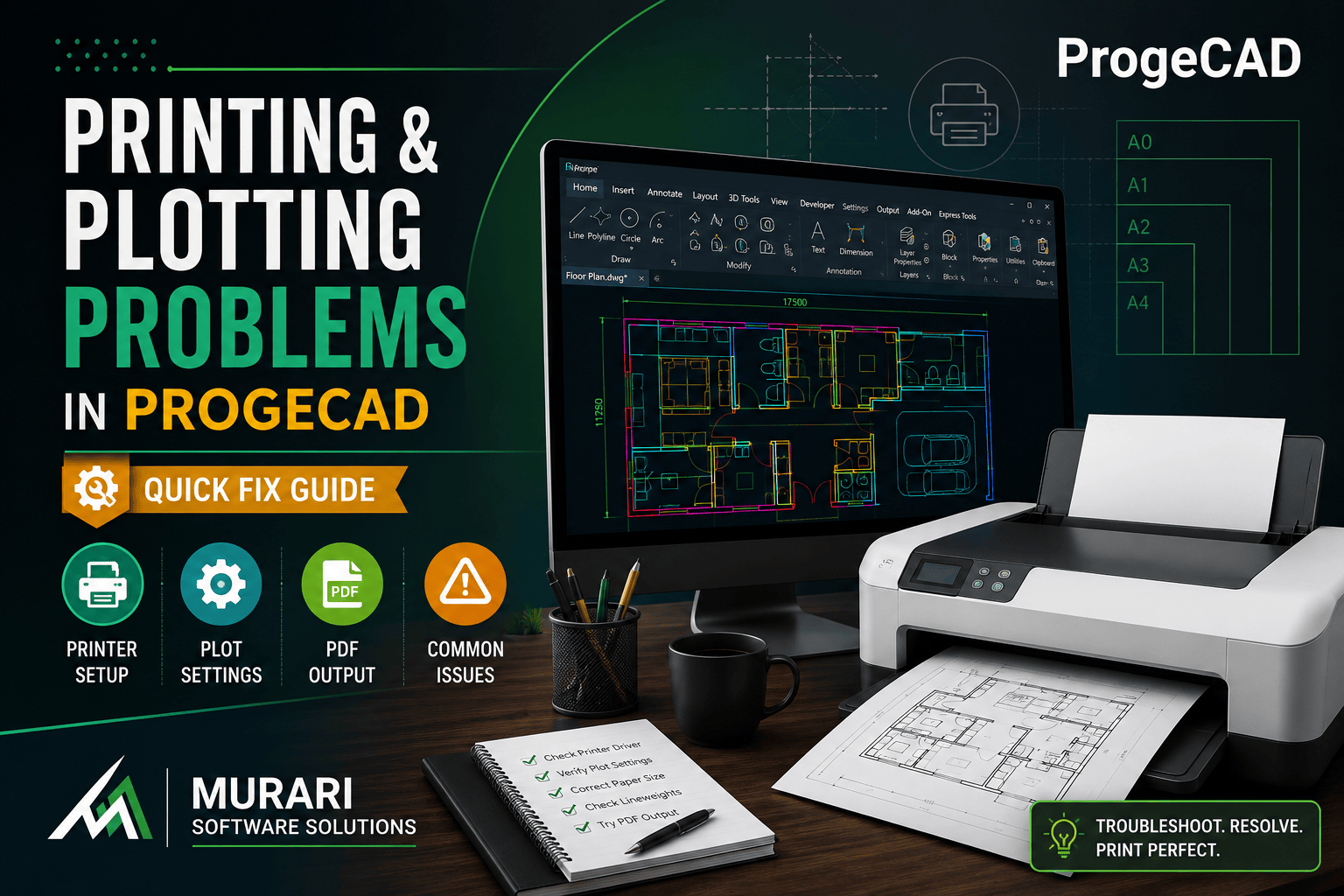
How to Fix Printing and Plotting Problems in progeCAD
Printing and plotting are essential parts of every CAD workflow. If your drawings are not printing correctly in progeCAD, the issue is usually related to printer drivers, page setup, paper size configuration, or plot settings rather than the software itself. This guide explains the most common causes and their solutions.
Common Printing Problems in progeCAD
- Printer does not appear in the Plot dialog.
- Blank pages are printed.
- Incorrect paper size or orientation.
- Lineweights are not displayed correctly.
- Drawing prints outside the printable area.
- Slow printing performance.
- PDF output quality is poor.
Recommended Solutions
1. Update Your Printer Driver
progeCAD uses the printer driver installed in Windows. Always install the latest printer driver provided by your printer manufacturer to ensure full compatibility and optimal performance.
2. Verify Plot Settings
Before printing, verify that the correct printer, paper size, plot area, plot scale, and orientation are selected. Incorrect plot settings are one of the most common reasons for printing issues.
3. Check Lineweight Settings
If printed drawings appear too thin or too thick, verify that lineweights are enabled and that the appropriate CTB or STB plot style table is selected.
4. Print to PDF First
If you experience inconsistent printer behavior, try exporting the drawing to PDF first. If the PDF appears correctly, the issue is most likely related to the printer driver rather than the drawing.
5. Restart the Printer and progeCAD
After updating printer drivers or changing printer settings, restart both Windows and progeCAD to ensure the new configuration is properly loaded.
Important Note About PC3 Files
Unlike some CAD applications, progeCAD primarily relies on the printer drivers installed in Windows. AutoCAD® PC3 configuration files may not be fully supported, so it is recommended to configure printing directly through your Windows printer settings.
Additional Troubleshooting Tips
- Use the latest Windows printer drivers.
- Verify printer permissions.
- Check available printer memory for large drawings.
- Update progeCAD to the latest version.
- Test printing with a simple drawing.
- Try printing to PDF to isolate hardware issues.
Need Help?
If you continue experiencing printing or plotting problems in progeCAD, the experts at Murari Software Solutions can help you diagnose driver issues, optimize plot settings, and resolve printer compatibility problems quickly.