
How to Fix Printing Rotation Not Working in ProgeCAD
How to Fix Printing Rotation Not Working in ProgeCAD
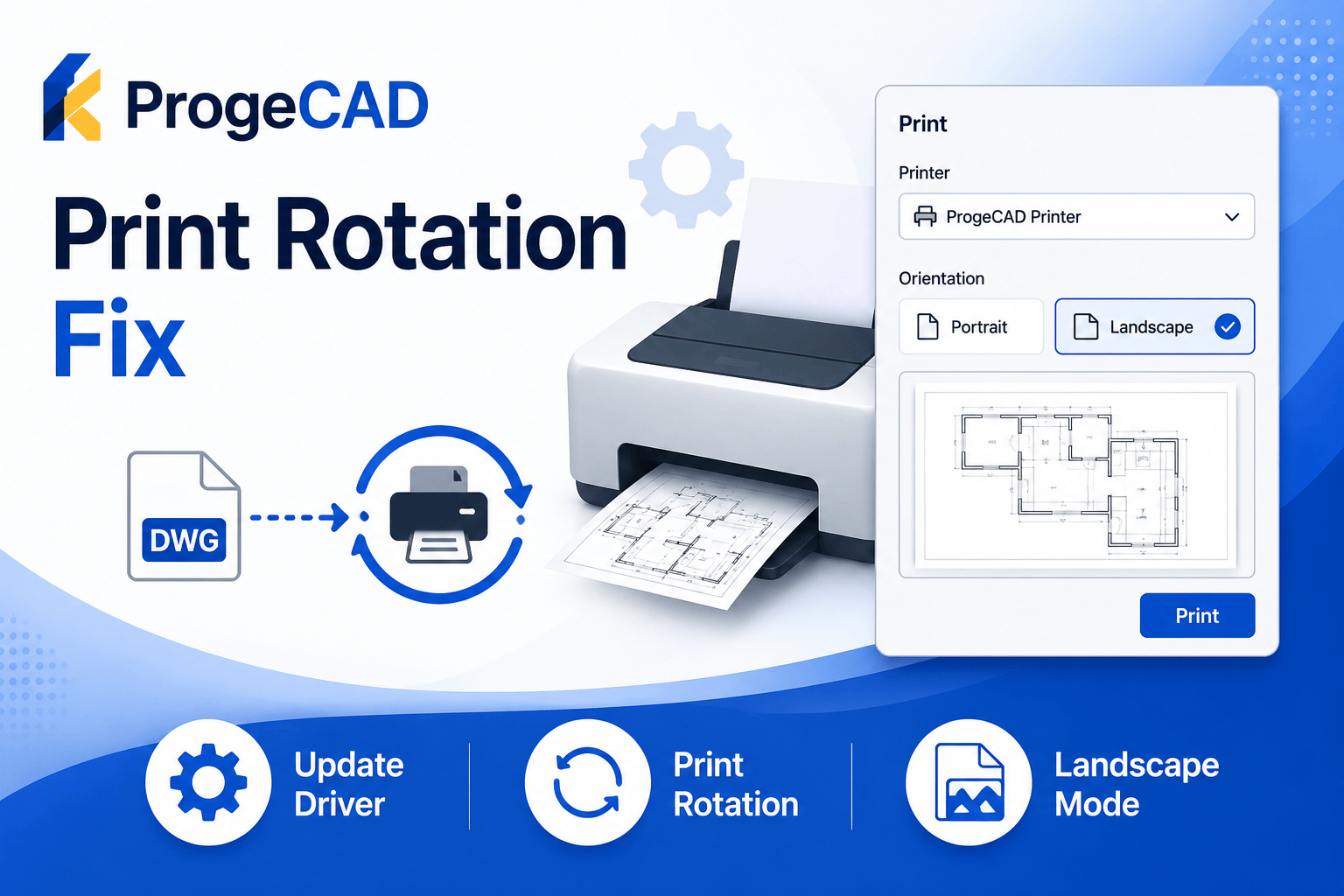
If the print rotation or page orientation is not working correctly in ProgeCAD, the issue is usually related to the printer driver rather than the CAD software itself. Updating the printer driver and verifying the print settings often resolves the problem.
Update Your Printer Driver
Download and install the latest printer driver directly from your printer manufacturer's official website. Drivers included with Windows may not support all printer features, including page rotation and orientation settings.
Verify Print Settings
- Open the Print dialog in ProgeCAD.
- Select the correct printer.
- Open Printer Properties.
- Choose the required paper orientation (Portrait or Landscape).
- Apply the settings and preview the drawing before printing.
Check Landscape Printing
If portrait rotation is not working correctly, try printing the drawing in Landscape mode. Many users find that landscape orientation works properly after updating the printer driver.
Additional Tips
- Restart ProgeCAD after updating the printer driver.
- Print a test page to verify the driver installation.
- Use the latest version of your printer software whenever possible.
- Confirm that the selected paper size matches your drawing layout.
Need Help?
If printing rotation still does not work after updating the printer driver, contact the Murari Software Solutions support team. We can help troubleshoot printer configuration, plot settings, and ProgeCAD printing issues.