
how-to-fix-copy-paste-not-working-in-progecad
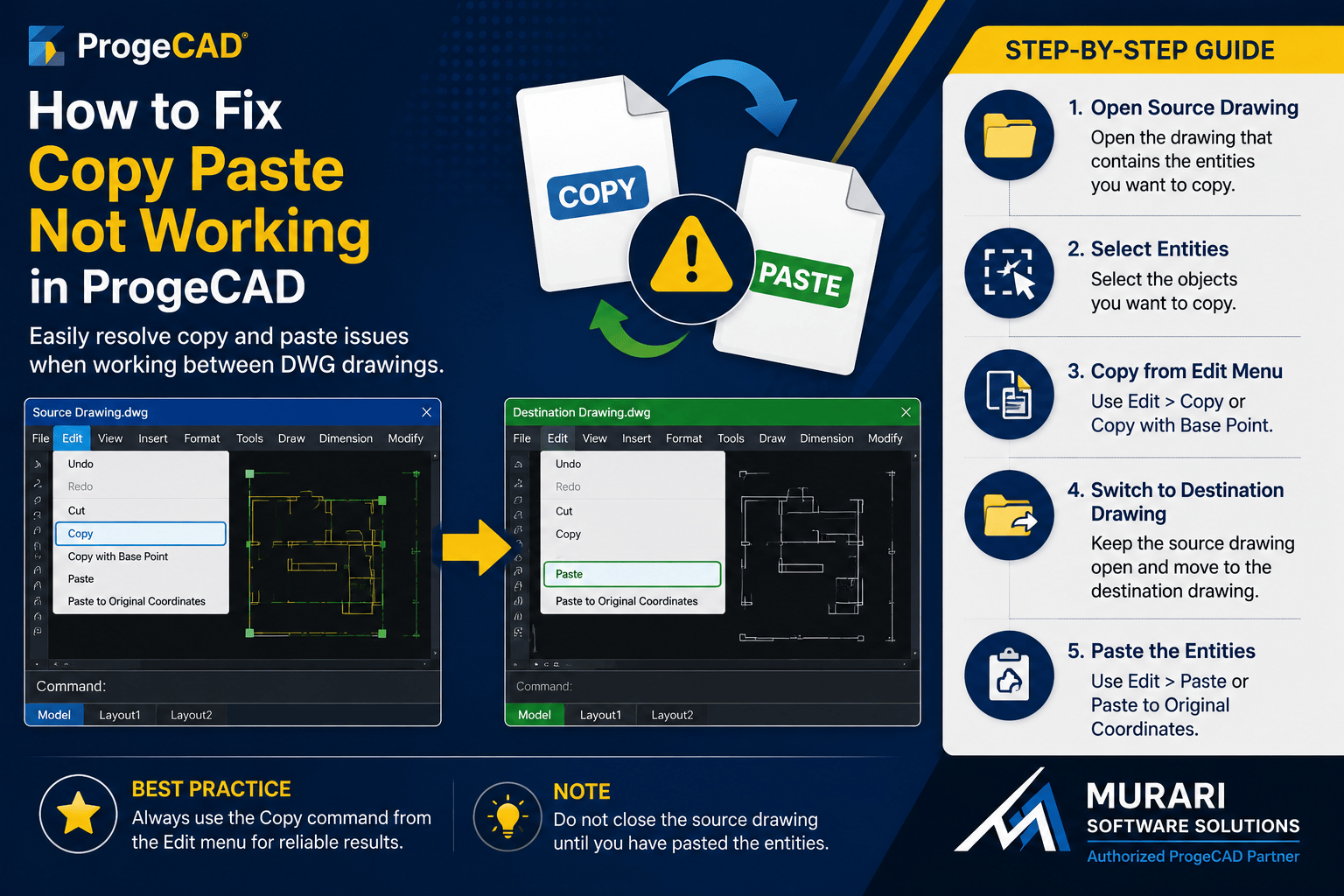
How to Fix Copy Paste Not Working in ProgeCAD
If copy and paste is not working in ProgeCAD, the problem is usually related to the source drawing being closed before the copied objects are pasted into another drawing. ProgeCAD stores copied entities temporarily, and closing the original drawing may clear the copied data.
Why Copy and Paste Stops Working
When you copy entities from one DWG drawing, ProgeCAD expects the source drawing to remain open until the paste operation is completed. If the original drawing is closed, the copied objects may no longer be available.
How to Fix the Problem
Follow these steps to copy objects successfully between drawings.
1. Open the source drawing that contains the objects you want to copy.
2. Select the required entities.
3. From the Edit menu, choose Copy or Copy with Base Point.
4. Keep the source drawing open.
5. Switch to the destination drawing without closing the original drawing.
6. From the Edit menu, select Paste or Paste to Original Coordinates.
Best Practice
Always use the Copy command from the Edit menu when transferring entities between drawings. Avoid closing the source drawing until the paste operation has been completed successfully.
If the Issue Continues
If copy and paste still does not work, verify that both drawings are editable and not opened in read-only mode. You can also restart ProgeCAD and try the operation again.
Need Technical Support?
Murari Software Solutions is the authorized ProgeCAD partner in India and provides professional licensing, installation, migration, training, and technical support for ProgeCAD users across India.