
Blog · 07-Jan-2026
ProgeCAD Drawing Opens with Missing Objects? Here's How to Recover It
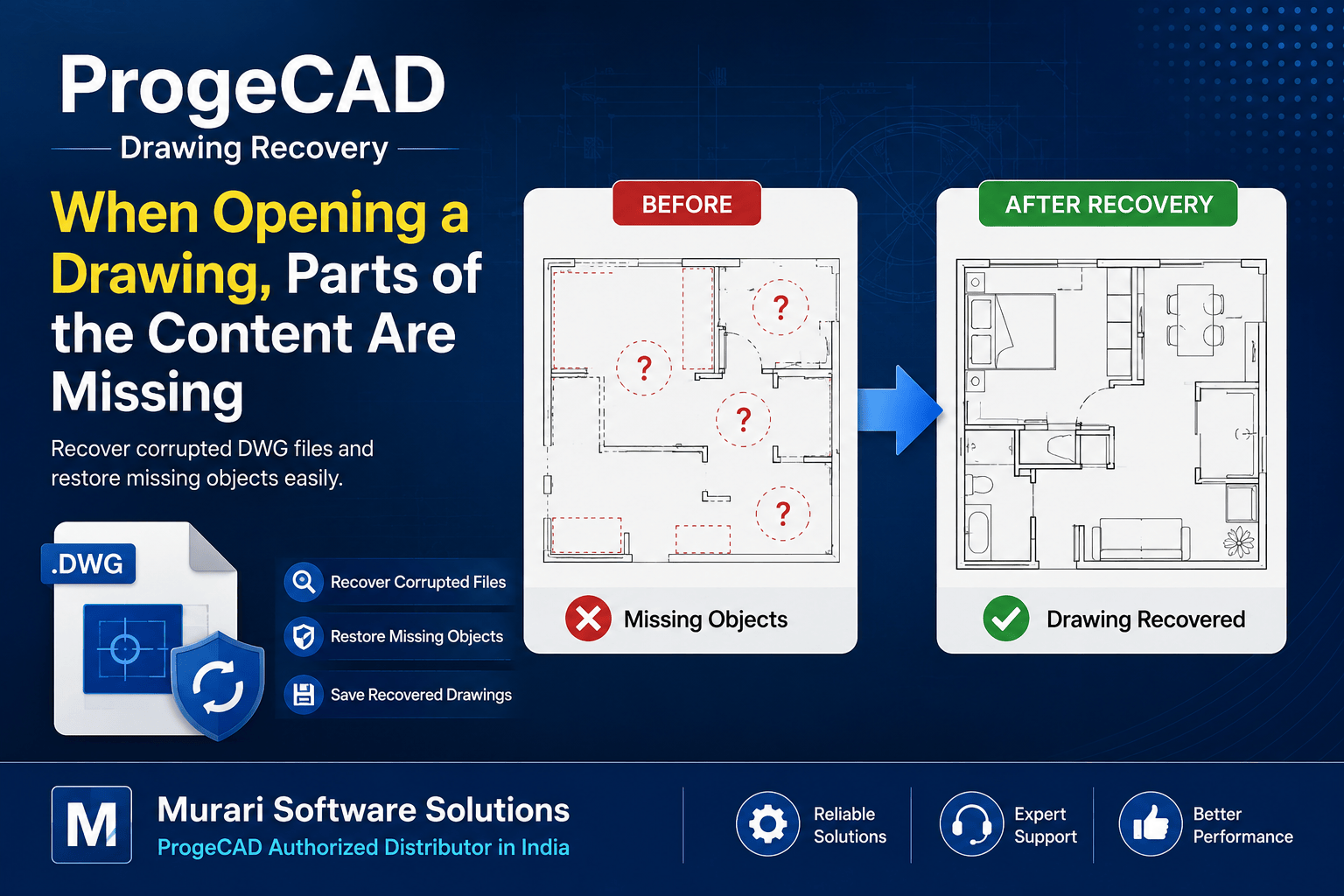
When Opening a Drawing, Some Parts Are Missing
If your drawing opens but some objects or details are missing, the DWG file may be corrupted. This can happen due to an interrupted save, storage issues, or file transfer errors.
You can often recover the drawing using the built-in Recover command in ProgeCAD.
How to Recover the Drawing
- Open ProgeCAD.
- Go to File > Recover.
- Select the damaged DWG file.
- Allow ProgeCAD to repair the drawing.
- After recovery, save the drawing with a new file name.
Best Practices
- Always keep backup copies of important drawings.
- Use "Save As" after recovery to preserve the repaired version.
- Store drawings on reliable drives and avoid interrupting the save process.
If the drawing still does not display correctly after recovery, contact Murari Software Solutions for technical assistance.