
How to Convert ProgeCAD Drawings to PDF | Step-by-Step Guide
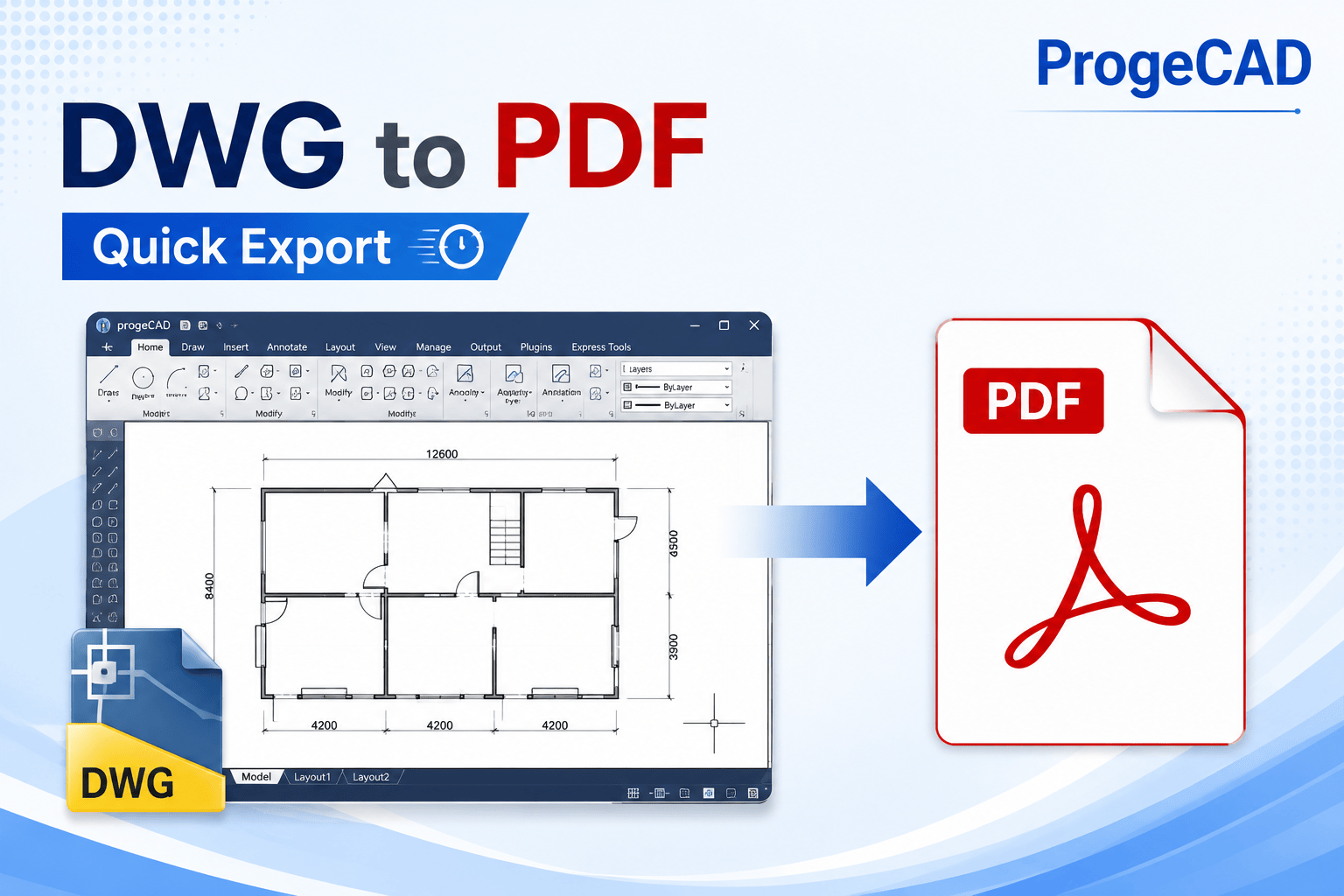
How to Convert ProgeCAD Drawings to PDF
ProgeCAD includes a built-in PDF Wizard that allows you to convert DWG drawings into high-quality PDF files without installing additional software. This feature is useful for sharing drawings with clients, consultants, or team members who do not have CAD software installed.
Steps to Convert a Drawing to PDF in ProgeCAD
- Open your drawing in ProgeCAD.
- Click File > Print.
- From the printer list, select ProgeCAD PDF Wizard.
- Click the Properties button if you need to change PDF print settings.
- Configure paper size, print area, plot scale, orientation, and pen settings.
- Use Print Preview to verify the output.
- Click Print.
- Choose the destination folder, enter the PDF file name, and save the document.
PDF Export Tips
- Select the correct paper size before printing.
- Use Print Preview to avoid scaling issues.
- Choose the appropriate plot style for better line quality.
- Save PDFs with descriptive filenames for easy identification.
- Verify margins and drawing orientation before exporting.
Benefits of Exporting to PDF
- Share drawings without requiring CAD software.
- Create professional documentation for clients.
- Preserve drawing layout and formatting.
- Generate lightweight files for email and online sharing.
- Archive project drawings in a universally supported format.
Troubleshooting PDF Conversion
If your PDF output is not displaying correctly, verify the selected paper size, plot scale, printer properties, and drawing extents. Using the latest version of ProgeCAD and updated printer drivers helps ensure reliable PDF generation.
Need Help with ProgeCAD PDF Export?
Murari Software Solutions provides expert support for ProgeCAD, including PDF printing, plot configuration, software installation, licensing, and technical assistance. Contact our team if you need help exporting drawings or optimizing your printing workflow.