
ProgeCAD Free Trial: Try Professional CAD Software for 30 Days
ProgeCAD Free Trial: Download and Test CAD Software
Looking for a ProgeCAD free trial before purchasing CAD software? Trying the software first is one of the easiest ways to see whether it fits your drafting, engineering, architecture or design workflow.
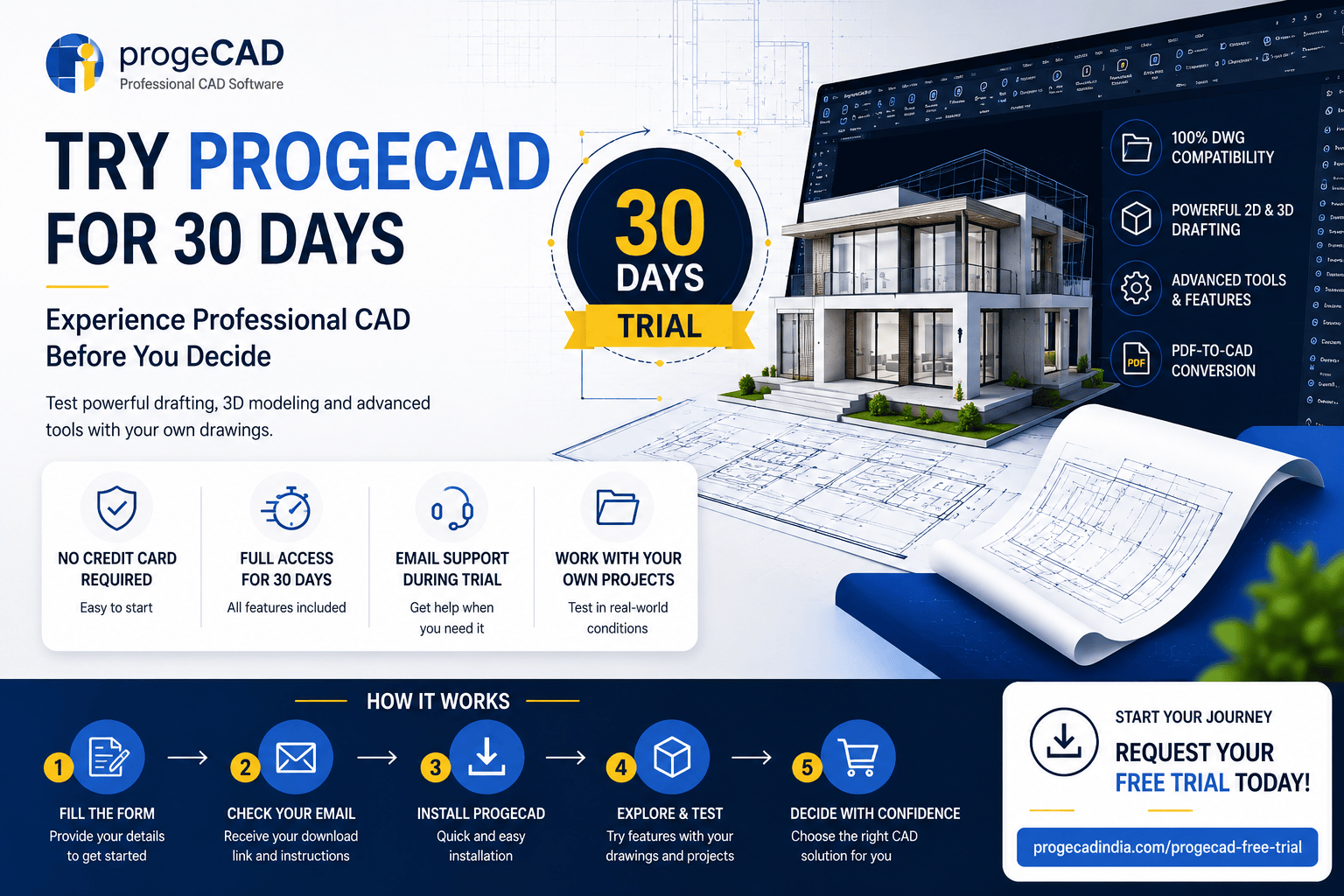
ProgeCAD offers a 30-day free trial that allows users to evaluate the software before purchasing a license. You can test professional CAD features, work with DWG drawings and see how ProgeCAD fits into your everyday design workflow.
Download the ProgeCAD Free Trial and start evaluating the software for your own projects.
What Is the ProgeCAD Free Trial?
The ProgeCAD free trial is an evaluation version that lets prospective users experience the software before buying a license.
Instead of choosing CAD software based only on specifications or screenshots, a trial lets you work with the software yourself. You can open drawings, create new designs, test commands and evaluate whether the interface and workflow suit your requirements.
ProgeCAD India currently provides a 30-day free trial for users who want to evaluate the software before purchasing.
Why Should You Try ProgeCAD Before Buying?
CAD software becomes part of your daily workflow, so choosing the right application is more than comparing prices. The best way to evaluate a CAD platform is to use it with the type of drawings and projects you normally work on.
A ProgeCAD trial can help you evaluate:
- 2D drafting performance
- 3D modeling capabilities
- DWG file compatibility
- Drawing editing workflows
- PDF-to-CAD capabilities
- CAD commands and shortcuts
- Templates and blocks
- Printing and plotting workflows
- Existing CAD files
- Overall ease of use
Who Can Benefit From a ProgeCAD Trial?
The trial is useful for anyone who wants to evaluate ProgeCAD before making a purchasing decision.
Architects
Architects can test drawing creation, editing, layouts, blocks and other CAD workflows using their own project files.
Civil Engineers
Civil engineering professionals can evaluate drawing performance, annotation workflows, DWG compatibility and project documentation.
Mechanical Designers
Mechanical design professionals can test 2D drafting, 3D modeling and drawing-editing workflows.
Interior Designers
Interior designers can use the trial to evaluate plans, layouts, dimensions, blocks and presentation-related drafting workflows.
Construction Professionals
Construction teams can test how ProgeCAD handles their existing drawings, project documentation and day-to-day drafting requirements.
Students and New CAD Users
Students and beginners can use the trial to become familiar with a professional CAD environment before deciding whether to purchase a license.
What Can You Test During the ProgeCAD Free Trial?
A trial is most valuable when you test the software using real-world tasks rather than simply opening the application and exploring menus.
1. Open Your Existing DWG Files
Start by opening drawings that you already use in your current CAD workflow.
Check dimensions, layers, blocks, text, external references, layouts and other important drawing elements.
ProgeCAD is designed around native DWG workflows, making DWG compatibility one of the most important areas to evaluate during your trial.
2. Create a New Drawing
Create a small project from the beginning and test the commands you use most frequently.
Try creating lines, polylines, circles, dimensions, hatches, blocks and other common drawing elements.
3. Test 2D Drafting
If your work is primarily 2D, spend time testing the drafting commands that form the core of your daily workflow.
- Layers
- Dimensions
- Text and annotations
- Hatching
- Blocks
- Layouts
- Viewports
- Object snaps
- Editing commands
4. Explore 3D Modeling
If you work with 3D projects, use the trial to explore ProgeCAD's 3D modeling capabilities.
Create or open a representative model and evaluate how the software performs with the type of geometry used in your projects.
5. Test PDF-to-CAD Workflows
If you regularly receive drawings in PDF format, test the PDF-to-CAD workflow during your trial.
This can help you determine whether the available conversion tools can reduce manual redrawing in your particular projects.
6. Check Printing and Plotting
Printing is an important part of many professional CAD workflows. Test your normal page sizes, plot styles, layouts and output settings before making a purchasing decision.
How to Download the ProgeCAD Free Trial
Getting started with the trial is straightforward.
Step 1: Visit the ProgeCAD Trial Page
Go to the ProgeCAD Free Trial page on ProgeCAD India.
Step 2: Submit Your Details
Complete the trial request form with the required information.
Step 3: Receive the Download Information
The download information is provided through email after submitting the trial request.
Step 4: Install ProgeCAD
Install the software on your Windows computer and begin testing the CAD features relevant to your workflow.
Step 5: Test Your Real Projects
Use representative drawings and tasks instead of testing only sample files. This gives you a much better understanding of whether ProgeCAD is suitable for your requirements.
ProgeCAD Free Trial vs Buying a License
The trial and the purchased license serve different purposes. The trial is intended for evaluation, while the purchased version provides a licensed production environment.
| Trial | Purchased License |
|---|---|
| Evaluate the software before buying | Use ProgeCAD as a licensed product |
| Test your CAD workflow | Use the software for production work |
| Check DWG compatibility | Continue working with professional CAD projects |
| Evaluate features and performance | Receive product ownership/licensing according to the purchased license |
| Make an informed purchasing decision | Access available product support and licensing benefits |
What Happens After the ProgeCAD Trial?
After evaluating the software, you can decide whether ProgeCAD meets your requirements.
If the software works well for your projects, you can move forward with a licensed version. ProgeCAD India offers perpetual licensing options, so users can purchase a license rather than being required to use a recurring software subscription.
Before purchasing, you can review the available editions and ProgeCAD pricing and license options.
If you are comparing CAD platforms, our ProgeCAD vs AutoCAD® comparison can also help you evaluate the differences in features, licensing and workflow.
Is ProgeCAD Free After the Trial?
No. The trial is provided so users can evaluate ProgeCAD before purchasing.
After the evaluation period, users who want to continue using ProgeCAD as a licensed product can purchase the appropriate license.
This try-before-you-buy approach allows users to evaluate the software using their own requirements before committing to a purchase.
Why Testing Your Own DWG Files Matters
One of the most important steps during any CAD software evaluation is testing your existing drawings.
A software feature list can tell you what a CAD application supports, but your own drawings reveal much more about compatibility and workflow.
During the ProgeCAD trial, consider testing:
- Small and large DWG files
- Complex layer structures
- External references
- Custom blocks
- Fonts and text styles
- Dimension styles
- Hatches
- Layouts and viewports
- Plotting and printing
- Custom LISP routines if applicable
This approach can help you identify compatibility or workflow issues before purchasing.
ProgeCAD Trial for AutoCAD® Users
If you currently use AutoCAD® or another DWG-based CAD application, the ProgeCAD trial gives you an opportunity to test whether your existing workflow can move to another professional CAD platform.
Rather than relying only on claims about similarity, open your own DWG files and perform the commands you use every day.
Pay particular attention to:
- Command behavior
- Keyboard shortcuts
- Layers
- Blocks
- Templates
- Dimensions
- Printing
- DWG file exchange
- Custom automation
You can then make a decision based on your actual workflow instead of simply comparing product names.
ProgeCAD Free Trial: A Simple Evaluation Checklist
Use this checklist during your trial period:
- Open your existing DWG files
- Create a new drawing
- Test common drafting commands
- Check layers and blocks
- Test dimensions and annotations
- Try 3D tools if required
- Test PDF-to-CAD workflows
- Check printing and plotting
- Test custom LISP applications if applicable
- Check your normal project workflow
- Compare the results with your current CAD software
- Review licensing and pricing before purchasing
Does ProgeCAD Provide Technical Support During the Trial?
ProgeCAD India states that free email technical support is available during the trial as well as after purchase.
If you encounter an installation, activation or product-related question while evaluating the software, you can contact the ProgeCAD India support team for assistance.
Visit the ProgeCAD Free Trial page to get started.
What Should You Consider Before Buying ProgeCAD?
After completing the trial, consider the following questions:
- Does ProgeCAD open your existing DWG files correctly?
- Can you complete your normal drafting tasks?
- Does the interface feel comfortable for your team?
- Does the performance meet your project requirements?
- Can you reproduce your normal plotting workflow?
- Do your custom tools and LISP routines work as expected?
- Does the licensing model fit your organization?
- Is the total cost suitable for your budget?
If the answer to these questions is positive, you have a much stronger basis for making a purchasing decision.
ProgeCAD Free Trial: Frequently Asked Questions
Is the ProgeCAD trial free?
Yes. ProgeCAD India provides a free trial that allows users to evaluate the software before purchasing a license.
How long is the ProgeCAD free trial?
The ProgeCAD India trial page currently states that the free trial is available for 30 days.
Where can I download the ProgeCAD free trial?
You can request the trial from the ProgeCAD Free Trial page. Complete the form to receive the download information.
Can I test my existing DWG files during the trial?
Yes. Testing your own DWG files is recommended because it lets you evaluate compatibility and workflow using real project requirements.
Can I test 2D and 3D CAD features?
Yes. ProgeCAD supports professional 2D drafting and 3D modeling workflows, so you can evaluate the capabilities relevant to your work during the trial.
Is ProgeCAD a subscription software?
ProgeCAD is available with perpetual licensing options. Optional upgrades to newer versions may involve an additional upgrade fee.
Do I have to buy ProgeCAD after the trial?
No. The trial is intended to help you evaluate the software before making a purchasing decision. You can decide whether ProgeCAD is suitable for your requirements.
Is technical support available during the trial?
ProgeCAD India states that free email technical support is available during the trial and after purchase.
Where can I check ProgeCAD pricing?
You can check the latest available license options and pricing on the ProgeCAD pricing page.
Start Your ProgeCAD Free Trial
The best way to determine whether a CAD application is right for your work is to test it with your own drawings and daily workflows.
With the ProgeCAD free trial, you can evaluate professional 2D drafting, 3D modeling, DWG workflows and other CAD capabilities before purchasing a license.
Download the ProgeCAD Free Trial and start testing ProgeCAD for your projects.
Ready to purchase after your evaluation? Visit ProgeCAD Buy Now to review the current licensing options.
Explore More ProgeCAD Resources
About ProgeCAD India
ProgeCAD India provides ProgeCAD software, licensing, technical support and CAD solutions for professionals and organizations across India.
Product features, trial terms, licensing options and pricing can change. Please check the latest information on the official ProgeCAD India website before downloading or purchasing.