
ProgeCAD License Registration Guide | Activate Your ProgeCAD License Successfully
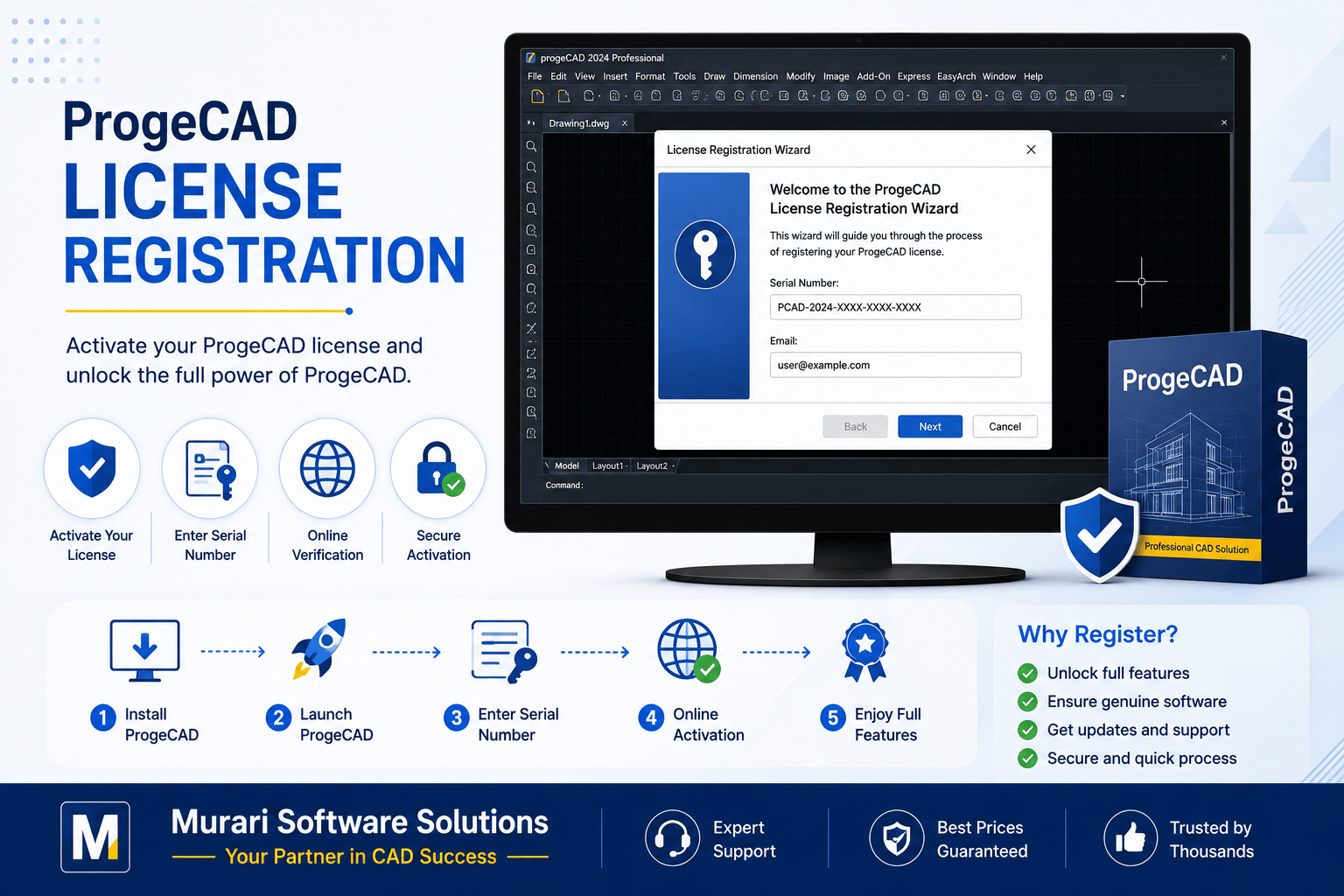
How to Register Your ProgeCAD License
After installing ProgeCAD, the next step is to register and activate your license. Registration unlocks the full functionality of the software and verifies that your license is genuine. The activation process is simple and only takes a few minutes when the correct license information is available.
Who Should Register a License?
You should register your ProgeCAD license if you have purchased a commercial license or received a valid serial number from an authorized reseller such as Murari Software Solutions. Trial users generally do not need to complete permanent license activation until purchasing the software.
How to Register a ProgeCAD License
- Install ProgeCAD on your computer.
- Launch ProgeCAD.
- When the License Registration Wizard appears, choose License Activation.
- Enter your Serial Number and other requested information.
- Follow the on-screen instructions to complete the activation.
- Restart ProgeCAD if prompted.
For ProgeCAD 2008 and Later Versions
All ProgeCAD versions released after 2008 include an automatic License Registration Wizard. Simply follow each step displayed by the wizard to activate your license online. The wizard guides you through entering your license details and completes the activation securely.
For Older Versions
If you are using a ProgeCAD version earlier than 2008, the registration procedure is different. Since these legacy versions use older licensing methods, you should contact your software provider or Murari Software Solutions for assistance with activation.
Information Required for Registration
- Valid ProgeCAD Serial Number
- Registered email address
- Internet connection (recommended)
- Administrator access to your computer
Common Registration Problems
- Incorrect serial number entered.
- Internet connection unavailable during activation.
- License already activated on another computer.
- Firewall or antivirus blocking activation.
- Using an outdated ProgeCAD version.
Tips for Successful Activation
- Copy and paste the serial number to avoid typing errors.
- Ensure your internet connection is stable.
- Run ProgeCAD as Administrator if activation fails.
- Install the latest ProgeCAD updates before registration.
- Keep your license details in a safe place for future use.
Frequently Asked Questions
Can I activate my license on another computer?
Yes. If you move to a new computer, first deactivate or uninstall the license from the previous machine according to ProgeCAD licensing policies before activating it on the new system.
What if activation fails?
Verify that your serial number is correct, confirm your internet connection is working, and temporarily disable firewall or antivirus software if necessary. If the issue continues, contact your ProgeCAD reseller for assistance.
Can I register offline?
Some ProgeCAD versions support offline activation methods. If online registration is unavailable, contact Murari Software Solutions for guidance.
Need Help Registering ProgeCAD?
If you're experiencing license activation or registration issues, Murari Software Solutions can help you complete the registration process, transfer licenses, resolve activation errors, and ensure your ProgeCAD installation is fully operational.