
Some ProgeCAD Print Options Are Not Available? Here's How to Fix It
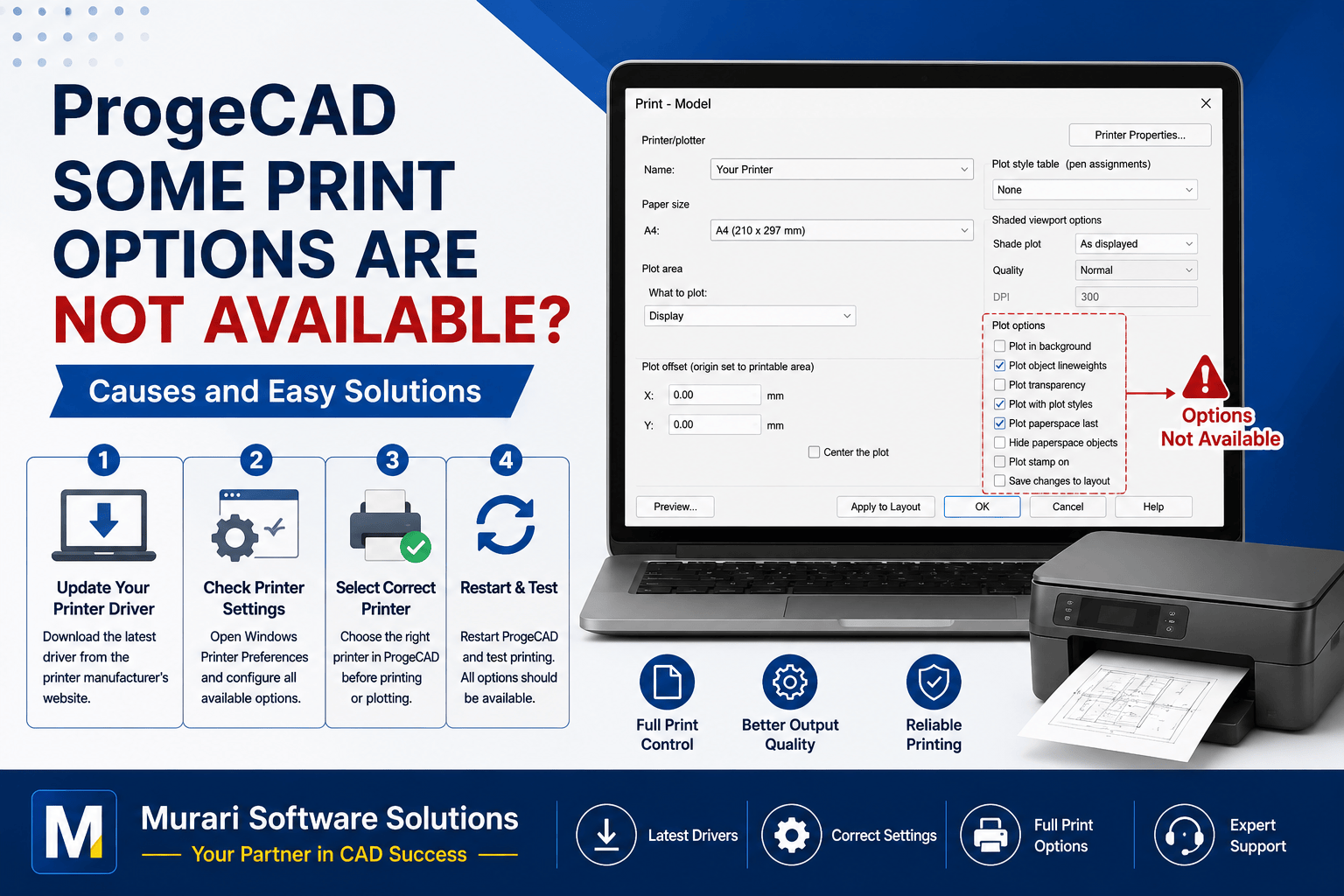
Some Print Options Are Not Available in ProgeCAD
If some print or plot options are missing, disabled, or unavailable in ProgeCAD, the issue is usually related to the printer driver or Windows printer configuration rather than the software itself. ProgeCAD uses the printer driver installed on your computer to determine which printing features are supported. If the driver is outdated, incompatible, or corrupted, certain options may not appear in the Print dialog.
This problem can occur after updating Windows, replacing a printer, installing a new printer, or using the default Windows printer driver instead of the official driver provided by the printer manufacturer.
Common Symptoms
- Paper size options are missing.
- Landscape or Portrait orientation cannot be changed.
- Custom paper sizes are unavailable.
- Print quality settings are disabled.
- Color or grayscale printing options do not appear.
- Some plot settings are missing.
- Printer Properties button does not show all available options.
- Advanced printing features are unavailable.
Why Does This Happen?
Every printer has different capabilities. ProgeCAD reads these capabilities directly from the installed printer driver. If Windows is using a generic driver instead of the official manufacturer driver, many advanced printing features cannot be detected. As a result, ProgeCAD only displays the options reported by the driver.
In some cases, network printers or recently updated Windows systems may also install a basic printer driver automatically, limiting the available print settings.
How to Fix Missing Print Options
- Download the latest printer driver from the official website of your printer manufacturer.
- Install the updated driver and restart your computer.
- Open ProgeCAD again.
- Open the Print or Plot dialog.
- Select the correct printer from the printer list.
- Open Printer Properties and verify that all printer features are available.
- If the problem continues, remove the existing printer driver completely and reinstall it.
Check Windows Printer Settings
If certain print options still do not appear, verify your Windows printer configuration.
- Open Control Panel.
- Select Devices and Printers.
- Right-click your printer.
- Select Printing Preferences.
- Configure paper size, orientation, print quality, and other printer settings.
- Save the changes.
- Restart ProgeCAD and test printing again.
Test Using Another Printer
If you are unsure whether the issue is caused by your printer driver, try selecting another printer such as Microsoft Print to PDF. If all print options become available, the issue is almost certainly related to the original printer driver.
For Network Printers
If you are printing to a shared or network printer, make sure the correct printer driver is installed locally on your computer. Using an incorrect or outdated network printer driver can prevent ProgeCAD from accessing advanced printing features.
Additional Tips
- Keep your printer drivers updated.
- Install Windows updates regularly.
- Use only official printer drivers from the manufacturer.
- Verify your CTB or STB plot style files are configured correctly.
- Restart ProgeCAD after changing printer settings.
- Test printing with a sample drawing before printing important projects.
Frequently Asked Questions
Why is my paper size missing?
Your installed printer driver may not support that paper size or may require an update.
Why are some print settings disabled?
Disabled print settings usually indicate that the installed printer driver does not support those features or Windows has installed a basic printer driver.
Should I reinstall ProgeCAD?
Reinstalling ProgeCAD is usually not necessary. Updating or reinstalling the printer driver resolves this issue in most cases.
Conclusion
Missing print options in ProgeCAD are almost always caused by printer driver or Windows printer configuration issues. Installing the latest printer driver, verifying Windows printer settings, and selecting the correct printer will restore most printing features. Keeping both ProgeCAD and your printer drivers updated helps ensure reliable printing and plotting performance.
If you continue to experience printing problems, contact Murari Software Solutions for professional ProgeCAD technical support and assistance.