
progeCAD Updates: Latest Features, Improvements and Bug Fixes
ProgeCAD Updates: Latest Features, Improvements and Bug Fixes
Keeping your CAD software updated is important for maintaining performance, improving drawing accuracy and avoiding common workflow problems. Whether you are an architect, civil engineer, mechanical designer or CAD professional, using an updated CAD application can make everyday drafting and design tasks more efficient.
progeCAD updates introduce new tools, performance improvements, compatibility enhancements and fixes that help users work more smoothly with DWG drawings. The latest progeCAD 2027 release brings several important enhancements, including a newer IntelliCAD engine, improved snapping, DWG Compare, better point cloud handling and updates to 2D drafting and 3D modelling.
In this guide, we will explore the latest progeCAD updates, important features, performance improvements, bug fixes and how to get the latest version.
1. What Is the Latest progeCAD Version?
The latest version listed on the official progeSOFT download page is progeCAD 2027 Professional, version 27.0.6.11 (64-bit), released on October 1, 2026.
The progeCAD 2027 Update 27.0.6 release also includes a substantial collection of fixes and improvements across different areas of the software.
Here is a quick look at the versions listed on the official download page:
| progeCAD version | Latest listed build |
|---|---|
| progeCAD 2027 | 27.0.6.11 |
| progeCAD 2026 | 26.0.12.10 |
| progeCAD 2025 | 25.0.10.3 |
Version availability can vary by language, region and distributor. Always check the appropriate download page before installing an update.
2. Major Features Introduced in progeCAD 2027
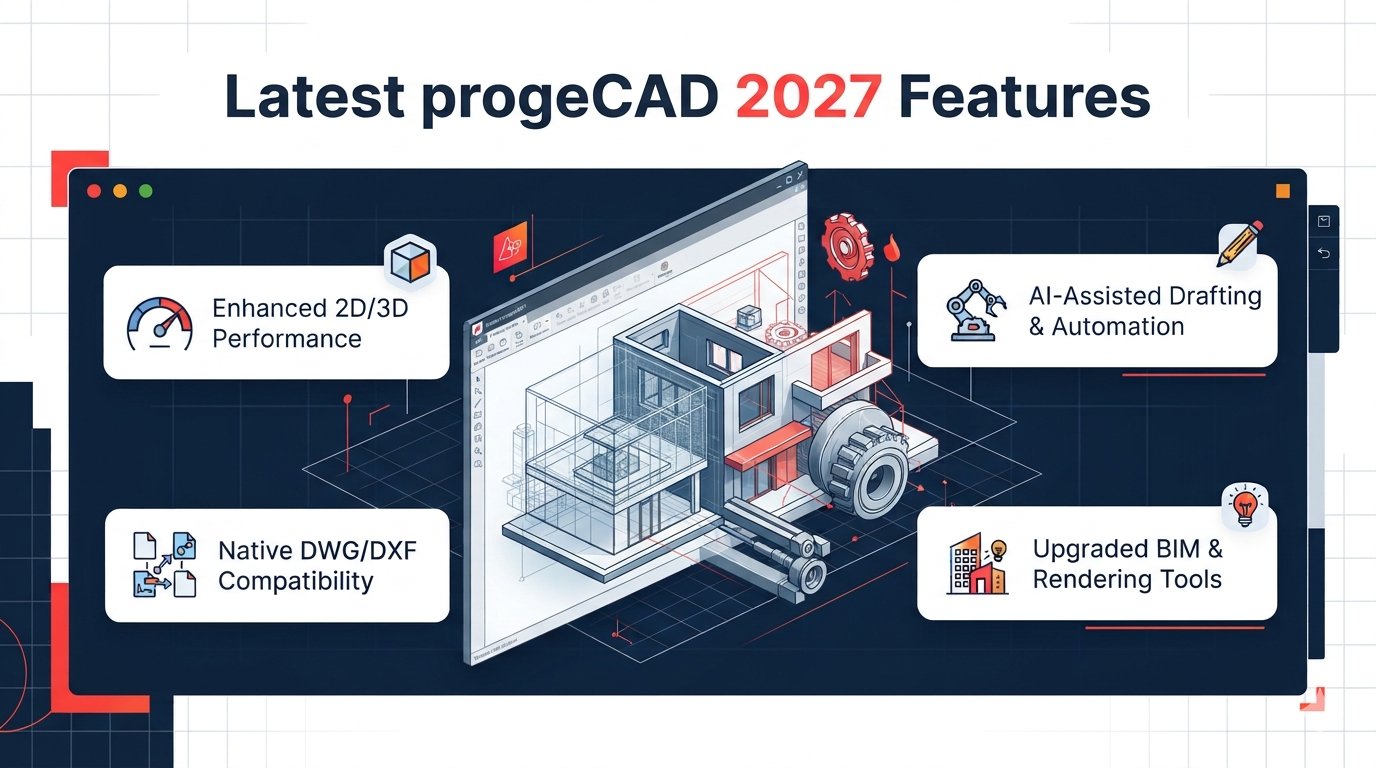
The progeCAD 2027 release introduces several new features designed to improve productivity and simplify CAD workflows.
New IntelliCAD 14.1 Engine
One of the most important changes is the introduction of the IntelliCAD 14.1 engine.
The updated engine brings improvements to drawing operations, memory management, snapping and overall application responsiveness. These enhancements are particularly useful when working with complex drawings or large projects.
DWG Compare
The new COMPARE command helps users identify differences between two DWG drawings.
It highlights added, removed and modified objects, making it easier to review revisions and understand design changes.
This feature can be useful for:
-
Comparing previous and updated drawing versions.
-
Reviewing modifications made by team members.
-
Checking design revisions before approval.
-
Identifying changes during project coordination.
Note that the comparison tool does not support every object type. For example, certain underlays, hatches, leaders and block attributes are excluded.
Flex License
The new Flex License makes it easier to use progeCAD across multiple computers.
Users can install the software on different PCs and transfer the active licence online when moving between workstations. An internet connection is required for the licence transfer, but the software can operate offline while activated.
This is useful for professionals who work from an office, home workstation or client location.
Floating Drawing Windows
progeCAD 2027 introduces floating drawing windows, allowing users to move drawings outside the main application window.
This is especially helpful for people using multiple monitors. You can keep reference drawings open on one screen while editing another drawing on a different screen.
Improved PDF-to-CAD Conversion
The updated PDF2CAD workflow gives users more control when converting PDF drawings into CAD files.
Users can insert converted PDF content into an existing drawing or create a new drawing from the converted content. Multi-page and batch conversion are also supported.
This can help when working with archived plans, technical documents and drawings received in PDF format.
Revit 2026 BIM Import Support
The BIM Import functionality in progeCAD 2027 supports Autodesk Revit 2026 RVT and RFA file formats.
This improvement can help professionals working with BIM-related project information and architectural design files.
3. Performance Improvements in the Latest progeCAD Updates
Performance is an important consideration when choosing CAD software. Slow commands and delayed drawing operations can affect productivity, particularly when working with detailed projects.
According to the official progeCAD 2027 feature information, the updated engine delivers improvements in several common operations.
| CAD operation | Reported improvement |
|---|---|
| Line creation using entity snaps | Up to 63% faster |
| Copy command | Up to 2× faster |
| Break command | Up to 12× faster |
| Copy to Clipboard | Up to 30× faster in typical scenarios |
These are improvements reported by progeSOFT for typical scenarios; actual results can vary depending on drawing complexity and computer configuration.
Other performance improvements include:
-
Faster Move, View and Union operations.
-
Improved grip-stretching for large groups of overlapping lines.
-
Faster property changes when multiple entities are selected.
-
Better memory management for large drawings.
-
Improved GeoMap background loading.
Together, these improvements can make everyday drafting and editing tasks more responsive.
4. Important Bug Fixes in progeCAD 2027 Update 27.0.6

Software updates are not only about introducing new features. They also help resolve issues that may affect drawing accuracy, application stability and productivity.
The progeCAD 2027 Update 27.0.6 release includes fixes across several important areas.
2D Drafting and Dimensions
The update addresses issues involving:
-
Stretching different types of dimensions.
-
Dynamic input dimension calculations.
-
Object snapping to certain endpoints.
-
Perpendicular object snapping.
-
Polar tracking in Paper Space.
-
Pasting certain constrained entities.
These fixes help improve reliability during common drafting and editing operations.
3D Modelling
The update includes improvements and fixes related to:
-
Face highlighting in different visual styles.
-
Dynamic UCS face selection.
-
3D solid subtraction in a specific case.
-
3D positioning operations.
-
Display of solid edges in Realistic and Conceptual visual styles.
These changes can help users working with 3D objects and visual representations.
Point Cloud Improvements
Point cloud functionality also receives attention in this release.
Some improvements include:
-
Faster LAS file loading.
-
Improved point cloud snapping and selection.
-
Better point cloud preview in the attachment dialog.
-
Support for additional point cloud stylization options.
-
Improved handling of clipped point clouds.
-
Fixes for crashes associated with certain RCS/RCP workflows.
These enhancements are particularly relevant to surveying, infrastructure and site-related projects.
External References and File Management
The update improves the management of external references (Xrefs).
Users benefit from additional path-management options, including changing paths and finding and replacing reference paths through Explorer tools.
The update also addresses problems involving missing references, reloading reference information and suggested file paths.
Printing and Publishing
Printing and PDF publishing are essential parts of many CAD workflows.
The update includes fixes for:
-
Print preview involving certain TrueType text and transparency settings.
-
Incorrect default printer and paper-size changes.
-
Automatic PDF file naming in the PUBLISH command.
-
Saving and loading combined-sheet PDF publishing options.
These improvements can help reduce issues when preparing drawings for sharing or submission.
Application Stability
The release also addresses various crashes and errors involving drawing operations, application dialogs, images, multiple displays, ViewCube and other workflows.
For professionals working on important projects, stability improvements are valuable because they help reduce interruptions during everyday work.
5. Improvements in 2D Drafting and 3D Design
progeCAD updates support both 2D drafting and 3D design workflows.
For 2D users, improvements to object snapping, dimensions, text editing, tables and drawing comparison can help make drafting more efficient.
For 3D users, enhancements to solid modelling, visual styles, face selection and point cloud operations support more reliable design work.
Some additional features introduced in progeCAD 2027 include:
-
ISODRAFT: Creates 2D isometric drawings using standard drafting tools.
-
SURFSCULPT: Helps create 3D solids by trimming and combining surfaces.
-
SVGIMPORT: Imports SVG files as CAD entities.
-
OVERKILL improvements: Helps remove overlapping and duplicate drawing objects.
-
Barcode generation: Creates barcode blocks directly in drawings.
-
Improved Tool Palettes: Adds workflow enhancements for managing drawing resources.
These features provide additional flexibility for users working across different industries.
6. How to Download and Install progeCAD Updates
Installing the latest compatible version helps ensure that you can access the available features and fixes.
Follow these general steps:
Step 1: Check Your Current Version
Open progeCAD and check the version information in the About section of the application.
Note your installed version and build number before proceeding.
Step 2: Visit the Official Update Page
Go to the official progeCAD updates page:
https://www.progesoft.com/support/progecad-updates
Check the available downloads and identify the correct version for your installation.
Step 3: Select the Correct Download
Choose the appropriate installer for your progeCAD version, language and system architecture.
Do not assume that every release is an interchangeable patch. Follow the instructions provided for the specific download.
Step 4: Back Up Your Important Files
Before installing, save your DWG drawings and back up important custom settings, profiles, toolbars and command aliases.
This is a useful precaution before any software update or upgrade.
Step 5: Install the Update
Close progeCAD and other related applications before running the downloaded installer.
Follow the installation instructions displayed on the screen. If the download is a full-version installer rather than a patch, follow the relevant installation or upgrade instructions.
Step 6: Verify the Installed Version
After installation, open progeCAD and check the About section again.
Confirm that the expected version and build number are displayed. You can then open a copy of an existing drawing and check that your regular commands and custom settings work as expected.
For India-specific availability and installation assistance, contact your authorised progeCAD distributor.
7. Why Should You Keep Your progeCAD Software Updated?
Keeping CAD software updated can provide several benefits for individuals and organisations.
1. Better performance: Newer releases may improve command response, drawing regeneration and memory management.
2. Improved reliability: Bug fixes can resolve issues involving drafting, dimensions, file handling and application stability.
3. Access to new tools: Updates and newer versions can introduce features that make certain design tasks easier.
4. Better compatibility: Software improvements can help users work with supported file formats and external design data.
5. More efficient workflows: Features such as DWG Compare, improved PDF conversion and enhanced point cloud tools can reduce repetitive work.
For businesses and design teams, maintaining a consistent and supported software version can also make project coordination easier.
8. Should You Update to progeCAD 2027?
If you are using an older progeCAD version, the 2027 release is worth evaluating for its new features and performance improvements.
It may be particularly useful for:
-
Architects who work with detailed building drawings.
-
Civil engineers handling site plans and survey data.
-
Mechanical designers working with DWG drawings and 3D models.
-
CAD technicians who regularly compare drawing revisions.
-
Design teams using multiple monitors.
-
Professionals who use custom LISP routines and automation tools.
Before upgrading, review the new features, system requirements, licence conditions and compatibility with your existing customisations.
If you depend on specialised add-ons or automation routines, test them with the new version before moving your entire workflow.
9. Frequently Asked Questions About progeCAD Updates
Q1. What is the latest progeCAD version?
The official progeSOFT download page lists progeCAD 2027 Professional version 27.0.6.11 (64-bit), released on October 1, 2026. Check the official updates page for the latest available build.
Q2. What is new in progeCAD 2027?
progeCAD 2027 introduces the IntelliCAD 14.1 engine, DWG Compare, Flex License, Floating Drawing Windows, improved PDF2CAD, Revit 2026 BIM Import support and several other enhancements.
Q3. Do progeCAD updates include bug fixes?
Yes. The progeCAD 2027 Update 27.0.6 release includes fixes and improvements involving drafting, dimensions, 3D modelling, point clouds, external references, printing, blocks, text editing and application stability.
Q4. How can I check my current progeCAD version?
Open progeCAD and access the About section to view the installed version and build number. Compare this information with the versions listed on the official update page.
Q5. Will updating progeCAD delete my drawings?
Software updates are not intended to delete your DWG project files. However, it is always recommended to back up important drawings and custom settings before installing an update.
Q6. Can I use progeCAD on multiple computers?
Licence usage depends on the licence type. The Flex License introduced in progeCAD 2027 allows users to install the software on multiple PCs and transfer the active licence online between them, subject to the licence terms.
Q7. Where can I download the latest progeCAD updates?
You can find official release downloads and update information on the progeSOFT website. For assistance in India, contact your authorised progeCAD distributor.
10. Conclusion
Regular progeCAD updates help users benefit from software improvements, new features and important bug fixes. The progeCAD 2027 release brings meaningful enhancements to drafting performance, DWG comparison, PDF conversion, 3D modelling, point clouds and application stability.
Whether you work in architecture, engineering, construction or mechanical design, reviewing the latest release information can help you decide when an update or upgrade makes sense for your workflow.
If you are planning to use the latest CAD tools, explore progeCAD Professional and check the available licensing and support options through ProgeCAD India.
Explore progeCAD Professional: https://progecadindia.com/
Check trial availability: https://progecadindia.com/progecad-free-trial
View licensing options: https://progecadindia.com/buynow