
ProgeCAD Zoom and Pan Shortcuts | Mouse Navigation Guide
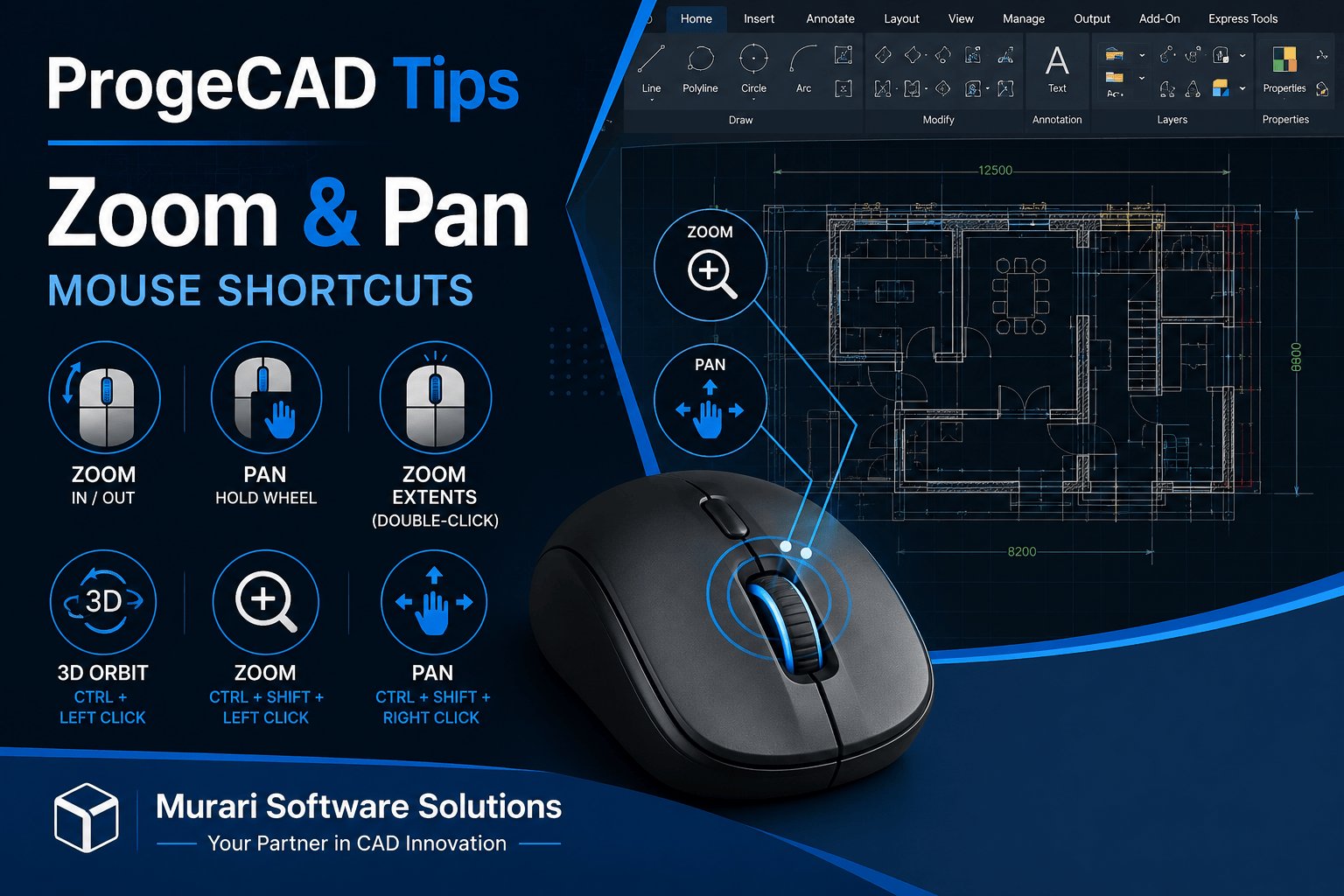
ProgeCAD Zoom and Pan Mouse Shortcuts
Efficient navigation is one of the most important skills for working in ProgeCAD. Whether you are creating architectural plans, mechanical drawings, civil engineering layouts, or electrical schematics, being able to move around your drawing quickly saves time and improves productivity.
Instead of repeatedly selecting commands from the toolbar or ribbon, ProgeCAD allows you to use simple mouse shortcuts for zooming, panning, and rotating your drawing. These shortcuts are available while working in both 2D and 3D environments and are designed to help users navigate large or detailed drawings with ease.
Common Mouse Shortcuts
| Action | Shortcut | Description |
|---|---|---|
| Zoom In / Zoom Out | Rotate Mouse Wheel | Scroll forward to zoom in and backward to zoom out without leaving your current command. |
| Pan Drawing | Press and Hold Mouse Wheel | Move the drawing in any direction while maintaining the current zoom level. |
| Zoom Extents | Double Click Mouse Wheel | Automatically displays the entire drawing within the current window. |
| 3D Orbit | Ctrl + Left Mouse Button | Rotate the model in 3D space for better visualization. |
| Continuous Zoom | Ctrl + Shift + Left Mouse Button | Smoothly zoom in or out by dragging the mouse. |
| Alternative Pan | Ctrl + Shift + Right Mouse Button | Pan the active drawing using an alternative shortcut. |
| Quick Pan | Shift + Mouse Drag | Temporarily activates pan without changing the current command. |
Why Learn These Shortcuts?
Using mouse shortcuts instead of toolbar commands can significantly improve your daily workflow. Designers and engineers who work with large projects often navigate drawings hundreds of times every day. Even saving a few seconds on each operation can make a noticeable difference over time.
- Navigate large drawings much faster.
- Reduce unnecessary mouse clicks.
- Improve drafting speed and efficiency.
- Inspect detailed drawing areas easily.
- Move between layouts without interrupting commands.
- Increase productivity for architectural, mechanical, civil, and electrical CAD projects.
Best Practices for Smooth Navigation
For the best user experience, use a quality mouse with a responsive scroll wheel. Keep your graphics drivers updated to ensure smooth zooming and panning performance. If you frequently work with very large DWG files, enabling hardware acceleration (when supported by your graphics card) can also improve navigation speed.
Learning keyboard shortcuts together with mouse navigation can further increase your efficiency. Combining commands such as Zoom Extents, Pan, and Object Snap allows you to complete drafting tasks much more quickly.
Troubleshooting Navigation Issues
If zooming or panning appears slow or unresponsive, consider the following:
- Update your graphics card driver.
- Close unnecessary applications to free system memory.
- Check your mouse settings in Windows.
- Verify that your scroll wheel is functioning correctly.
- Reduce the complexity of extremely large drawings if performance becomes slow.
- Ensure you are using the latest version of ProgeCAD.
Frequently Asked Questions
Can I zoom while using another command?
Yes. The mouse wheel allows you to zoom in and out without cancelling your current drawing command.
How do I quickly display the entire drawing?
Simply double-click the mouse wheel to perform Zoom Extents and display all visible objects.
Can these shortcuts be used in 3D?
Yes. ProgeCAD supports 3D navigation, including orbit functionality, making it easier to inspect models from different angles.
Conclusion
Mastering ProgeCAD zoom and pan shortcuts is one of the easiest ways to improve your CAD productivity. Whether you are a beginner or an experienced designer, these simple mouse controls help you navigate drawings more efficiently, reduce repetitive actions, and create designs faster.
If you need assistance with ProgeCAD installation, licensing, upgrades, training, or technical support, Murari Software Solutions is here to help. Our team provides expert guidance to ensure you get the best performance from your ProgeCAD software.