
How to Reinstall ProgeCAD After a Hard Disk Crash | License Recovery Guide
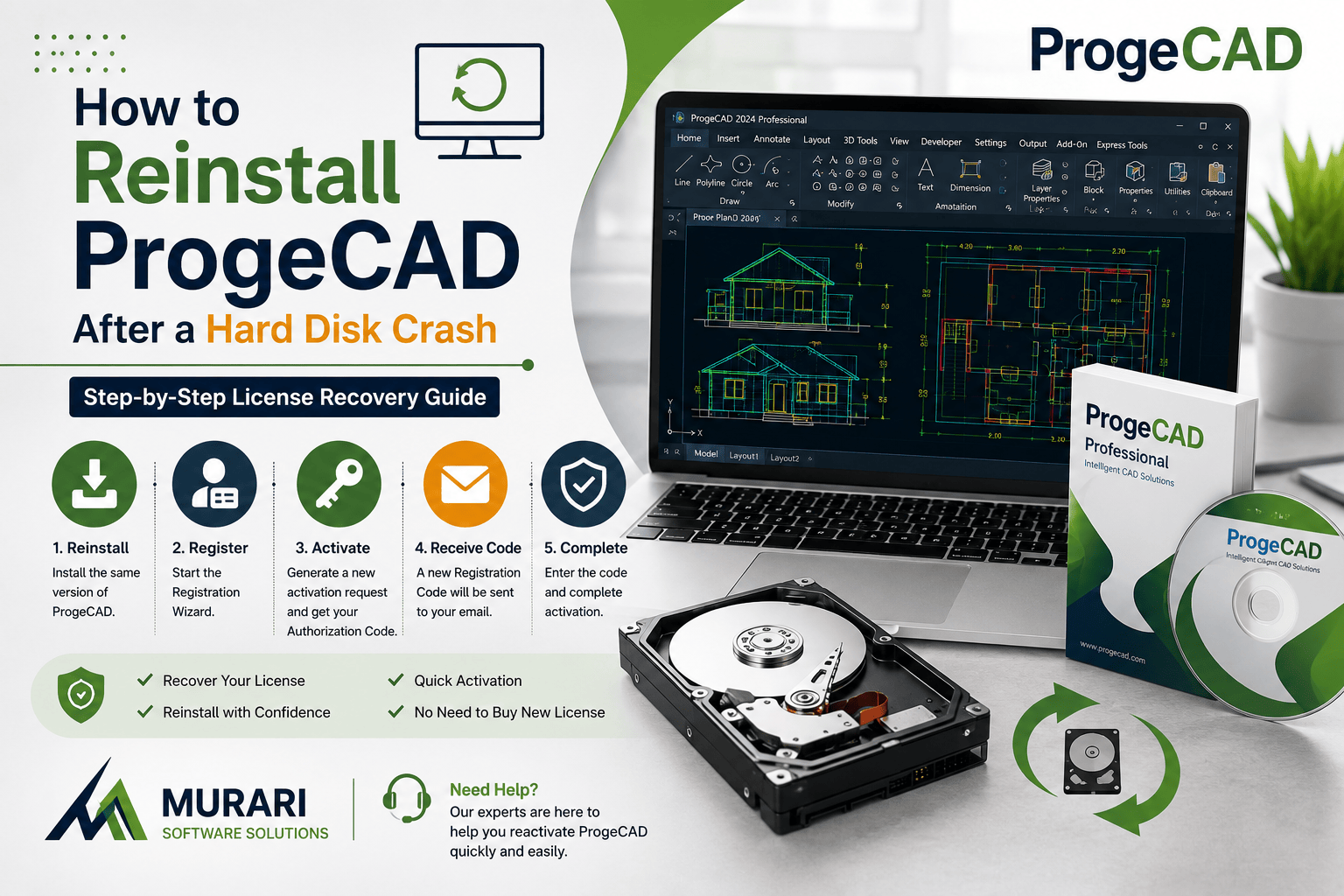
How to Reinstall ProgeCAD After a Hard Disk Crash
If your computer's hard disk has crashed, your operating system has been reinstalled, or you have replaced your storage drive, you can reinstall ProgeCAD and reactivate your existing license without purchasing a new one. This guide explains the correct procedure for different ProgeCAD versions.
Before starting, ensure you have your original installation file, license information, and access to the email address used during the original registration process.
Reinstalling ProgeCAD 2008 and Later Versions
- Install the same version of ProgeCAD on your new computer or hard drive.
- Launch the software after installation.
- Start the Registration Wizard.
- Follow the on-screen activation process.
- Generate a new activation request.
- You will receive a new Authorization Code for your installation.
- Enter the Authorization Code to complete the activation.
Since the hardware signature changes after replacing a hard disk or reinstalling Windows, a new authorization code is normally required.
Reinstalling ProgeCAD 2007 (Without USB Key)
- Install ProgeCAD 2007.
- Open the Registration Wizard.
- Select that the software has already been registered.
- Choose the option indicating that you do not have the LTC Code.
- Complete the remaining registration steps.
- A new Registration Code will be sent automatically to your registered email address.
- Use the received code to activate your software.
Reinstalling Versions Earlier Than ProgeCAD 2007
For versions released before ProgeCAD 2007, simply reinstall the software and complete the registration process as if it were a first-time installation. Follow the activation wizard carefully to obtain the required registration information.
Before Reinstalling ProgeCAD
- Use the original ProgeCAD installation package whenever possible.
- Keep your serial number and license information available.
- Ensure you have a stable internet connection during activation.
- Install the latest Windows updates before installing ProgeCAD.
- Run the installer with Administrator privileges.
Common ProgeCAD Activation Issues
If the activation process fails after a hard disk replacement or Windows reinstallation, verify that you are installing the correct ProgeCAD version and using the original license details. Firewall restrictions, antivirus software, or incorrect system date and time may also affect online activation.
If you continue experiencing activation problems, contact Murari Software Solutions with your serial number and purchase information for assistance with ProgeCAD license recovery.
Need Help?
Murari Software Solutions has been an authorized ProgeCAD distributor in India for many years and provides technical assistance for installation, activation, license migration, and software reinstallation. If your system has crashed or your hardware has changed, our support team can help you reactivate your licensed copy of ProgeCAD quickly.