
Blog · 26-Aug-2025
Unable to Obtain the ProgeCAD Uninstall Code (LTC)? Here's the Solution
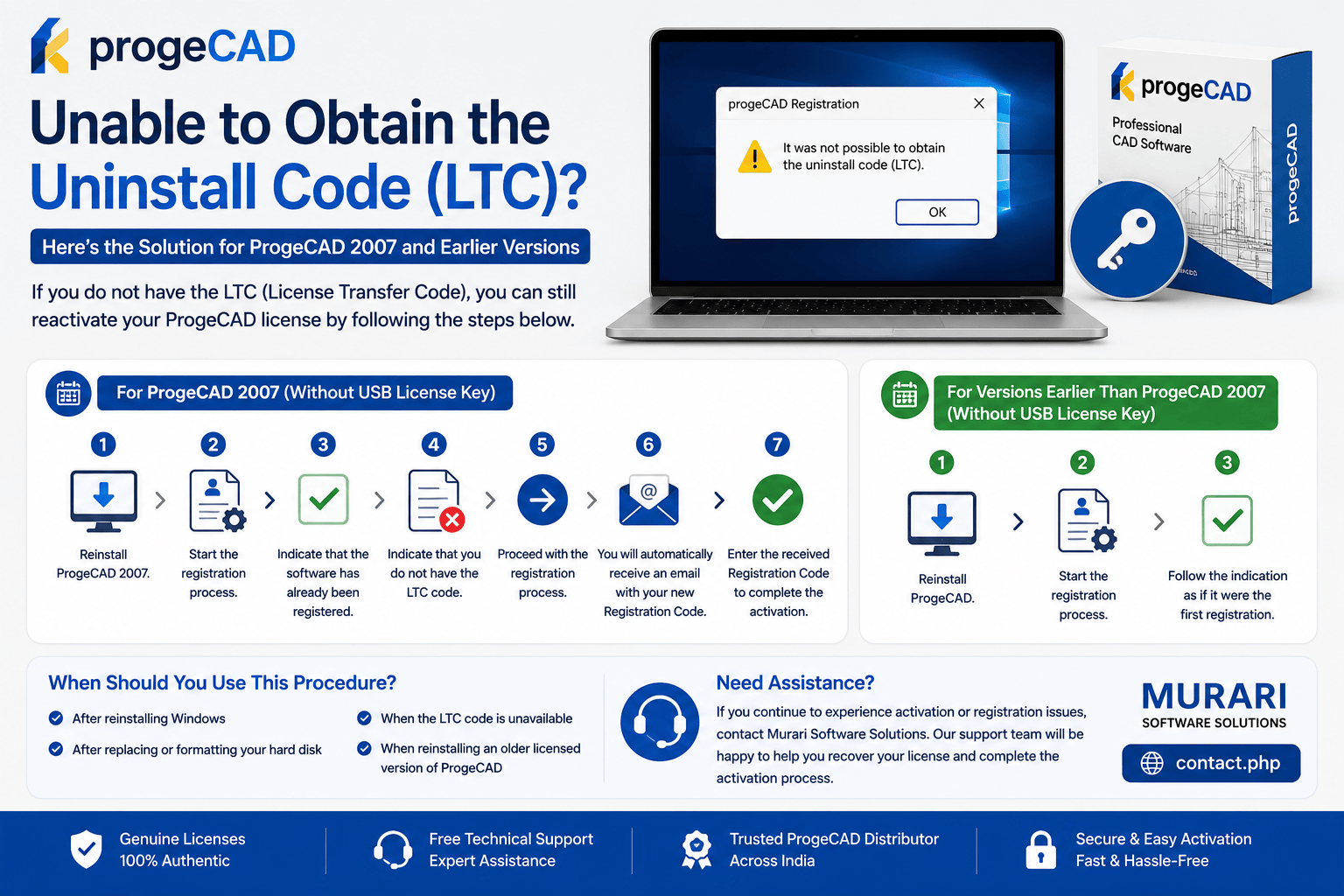
Unable to Obtain the ProgeCAD Uninstall Code (LTC)?
If you are using ProgeCAD 2007 or an earlier version and cannot obtain the LTC (License Transfer Code), you can still reactivate your software by following the appropriate registration procedure. The steps vary depending on the version you are using.
For ProgeCAD 2007 (Without USB License Key)
- Reinstall ProgeCAD 2007 on your computer.
- Launch the Registration Wizard.
- Select the option indicating that the software has already been registered.
- When prompted for the LTC code, choose the option stating that you do not have the LTC code.
- Continue with the registration process.
- A new Registration Code will automatically be sent to your registered email address.
- Enter the received Registration Code to complete the activation.
For Versions Earlier Than ProgeCAD 2007
For ProgeCAD versions released before 2007, reinstall the software and complete the registration process as if it were a first-time installation. Follow the on-screen instructions to generate the required registration details.
When Should You Use This Procedure?
- After reinstalling Windows.
- After replacing or formatting your hard disk.
- When the LTC code is unavailable.
- When reinstalling an older licensed version of ProgeCAD.
Need Assistance?
If you continue to experience activation or registration issues, please contact Murari Software Solutions. Our support team can help you recover your license and complete the activation process for eligible ProgeCAD versions.