
Progcad: How to Compare Two DWG Drawings and Find Design Changes
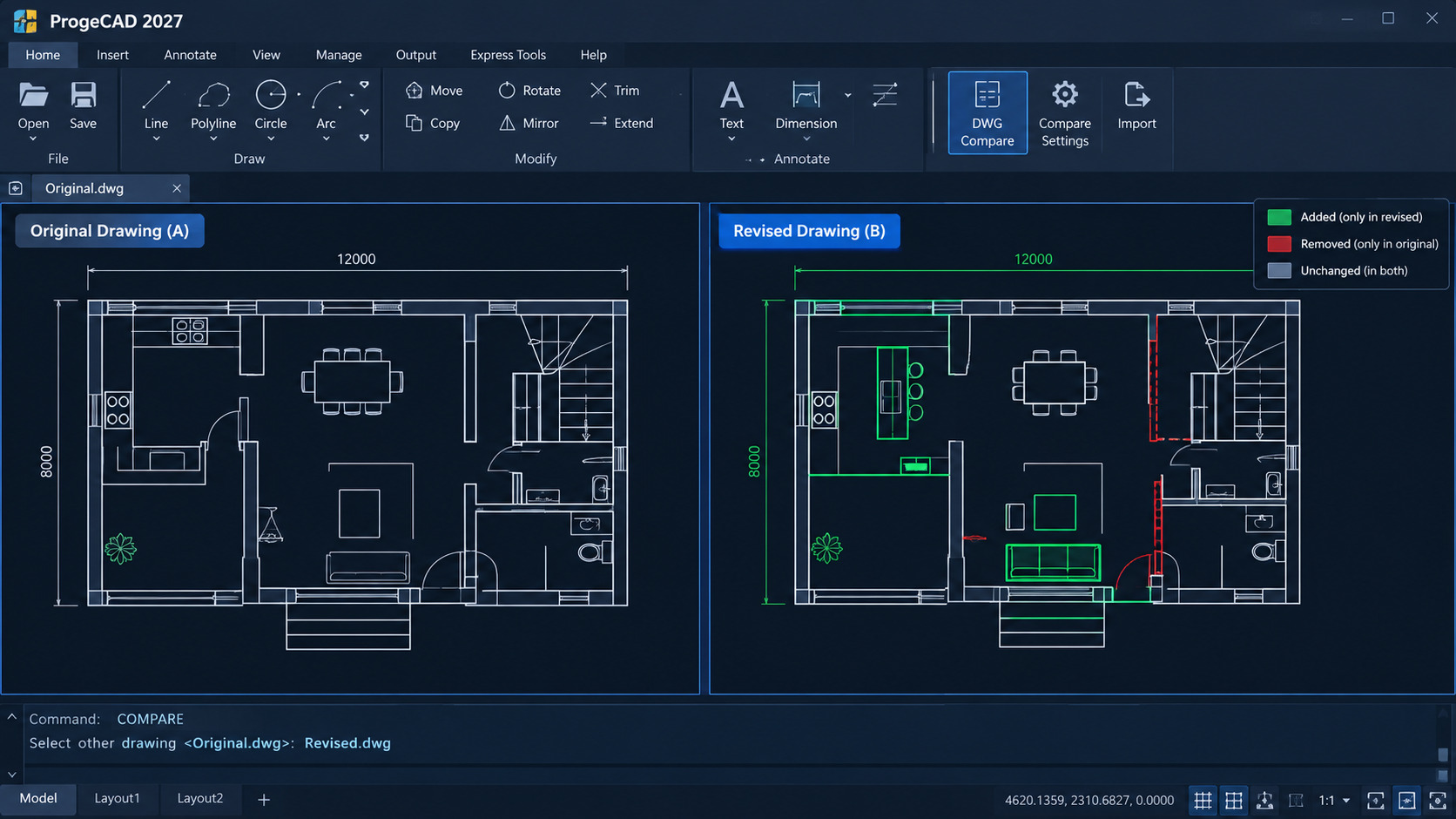
How to Compare Two DWG Drawings and Find Design Changes in ProgeCAD
Drawing revisions are a normal part of design work. An architect may move a wall. An engineer may change a component. A contractor may receive an updated plan just before work begins.
Some people refer to progeCAD as “Progcad” when searching online for CAD software. If you are looking for Progcad, you are likely referring to progeCAD, a CAD solution that supports working with DWG drawings, editing designs, and comparing drawing revisions. In this article, we use the term “Progcad” alongside the official product name, progeCAD, to help readers find the information they need.
Finding every change by looking at two drawings side by side can take time. Small differences are easy to miss, especially in complex files. ProgeCAD 2027 includes a DWG Compare tool that helps you review drawing differences.
If you searched for progcad to learn about CAD software, this guide explains one useful workflow. You will learn how to compare DWG files, review highlighted changes, and check common issues before approving a revision.
What Is DWG Compare in ProgeCAD?
DWG Compare is a feature in ProgeCAD 2027. It compares the drawing currently open with another DWG file. The results highlight differences so you can review them more easily.
The COMPARE command identifies added, removed, and modified drawing objects. A comparison toolbar lets you move between detected change areas and manage how differences appear.
DWG Compare can be useful for tasks such as:
- Checking revised architectural floor plans
- Reviewing updates to mechanical drawings
- Confirming changes requested by a client
- Checking consultant drawings before coordination
- Reviewing a design before issuing it for approval
The tool helps focus your attention. It does not replace engineering judgement or a full drawing review.
Why Compare Two DWG Drawing Revisions?
Technical drawings may pass through several revisions during a project. Each revision can include additions, removals, or geometry changes. Reviewing those changes helps teams understand what was updated.
DWG comparison can help you:
- Find changes faster: Highlighted differences are easier to locate than changes found by visual scanning alone.
- Check requested updates: Compare the revised drawing with the previous version and confirm whether requested edits are present.
- Improve coordination: Discuss specific changes with architects, engineers, consultants, and contractors.
- Support revision control: Review drawings before approval, distribution, or production.
Not every difference is an error. Some changes are planned improvements. Always compare the results with project notes, dimensions, and design requirements.
How to Compare Two DWG Drawings in ProgeCAD
Before starting, locate the two DWG files you need to review. Keep an unchanged copy of the original files. This gives you a reference if you need to check the comparison again.
Step 1: Open the Current Drawing
Open the drawing you want to review in ProgCAD. This is the current drawing for the comparison session.
Check that the drawing opens correctly. Make sure its important references and drawing content are available. If the file shows errors or missing content, resolve those issues before reviewing differences.
Step 2: Start DWG Compare
Run the COMPARE command in the command line. In ProgeCAD, you can also find DWG Compare under View > Review or Tools > DWG Compare, depending on the workspace and menu layout.
When prompted, select the other DWG file for comparison. ProgeCAD compares that file with the drawing currently open.
Step 3: Read the Highlighted Differences
The comparison view highlights differences between the two drawings. By default, red indicates elements that are not in the current drawing. Green indicates elements found only in the current drawing. Grey indicates matching elements.
You can adjust the comparison colours in the settings. Check your installed version's display before interpreting each colour, especially if your team uses custom settings.
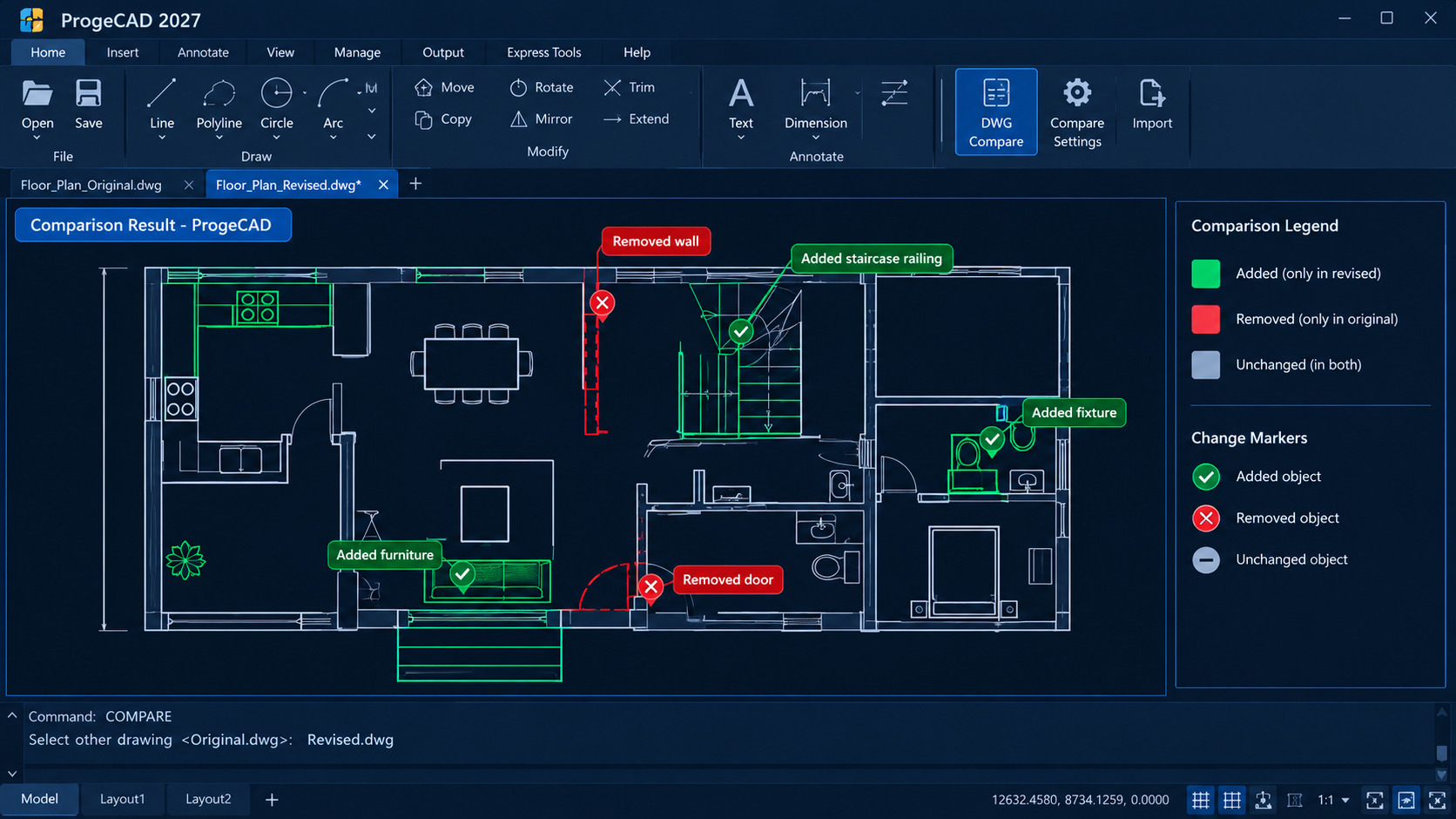
Step 4: Review Each Change Area
Use the comparison toolbar to move to the previous or next change set. Zoom in when a difference is difficult to inspect.
Check the surrounding geometry, dimensions, annotations, and connected drawing elements. A small change can affect another part of the design. Confirm that each difference matches the intended revision.
Step 5: Confirm the Revision Before Sharing
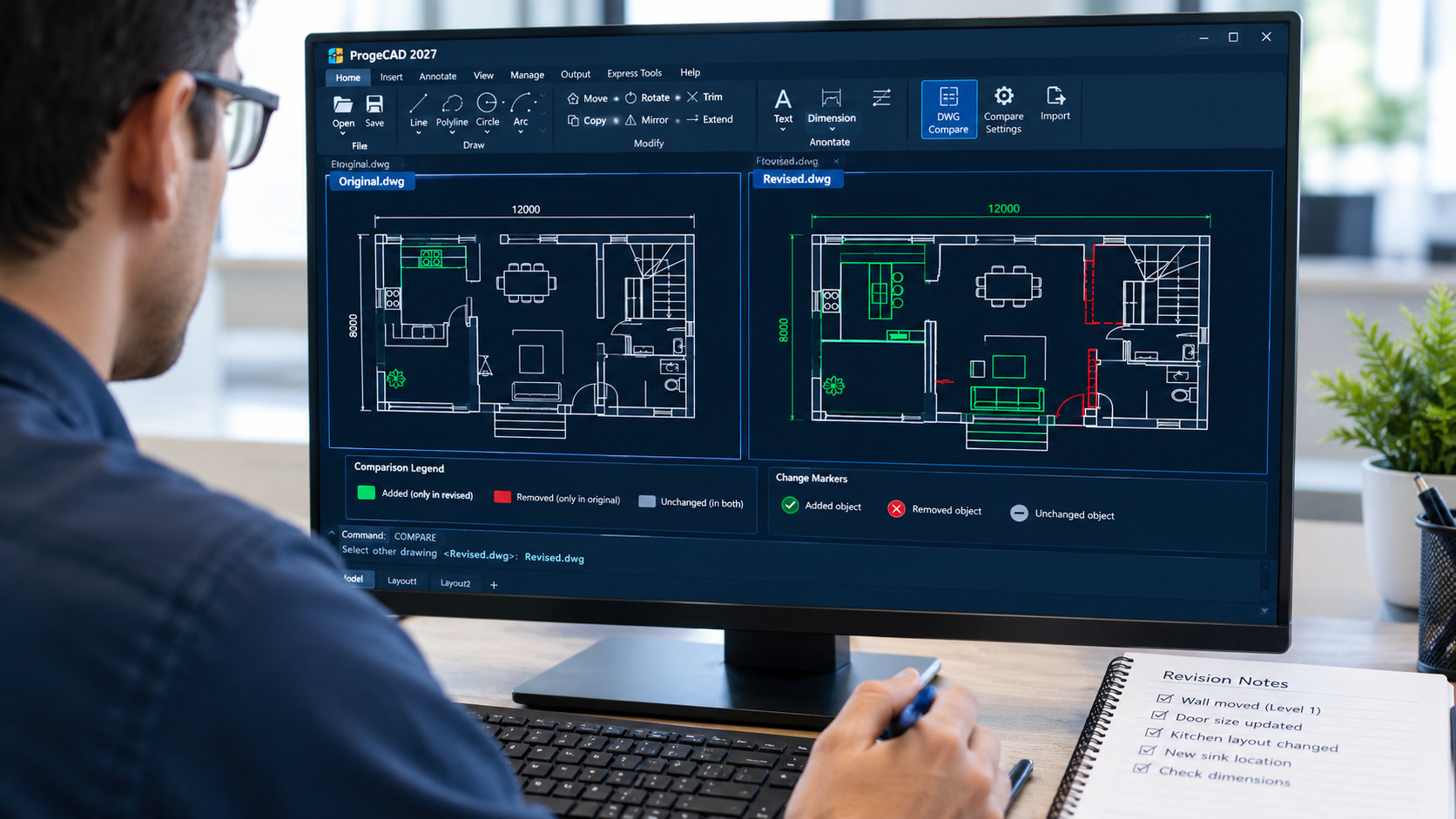
Compare the results with the revision notes or project instructions. Confirm which changes were expected and investigate anything unclear.
The comparison toolbar can also start the COMPAREIMPORT command in progcad. This can import objects that are unique to the comparison drawing into the current drawing. Review the selection carefully before importing objects.
Save approved work under the correct file name and revision number. Follow your team's normal drawing issue and approval process.
What Types of Changes Can DWG Compare Help You Find?
Added Objects
The revised drawing may include new lines, shapes, or other supported objects. Review these additions to confirm that they belong in the updated design.
Removed Objects
Some objects from the earlier drawing may no longer appear in the current version. Check whether their removal was intentional. Pay special attention to details that affect construction, installation, or manufacturing.
Modified Geometry
Geometry may have changed between revisions. Inspect the highlighted area and verify important measurements with the appropriate dimensioning tools. The visual comparison should be one part of the review, not the only check.
What Are the Limitations of ProgeCAD DWG Compare?
DWG Compare does not support every object type. ProgeCAD's documentation lists limitations that include images, non-DWG underlays, OLE objects, cameras, proxy entities, hatches, leaders and multileaders, point clouds, feature control frames, and block attributes.
This is important when working with complex drawings. A comparison may not show every change involving unsupported objects. Inspect those items separately in both files when they matter to the project.
Also check important dimensions, external references, text, and plotting settings. A comparison tool helps reveal differences, but it does not confirm that a drawing is technically correct.
Best Practices for Reliable DWG Comparison
- Confirm the file versions: Check file names, dates, and revision numbers before comparing.
- Keep the original: Save a separate copy before making any edits or imports.
- Review all detected changes: Do not assume highlighted objects are automatically mistakes.
- Inspect unsupported objects: Manually check images, hatches, block attributes, and other excluded content.
- Verify measurements: Check critical dimensions and geometry with the appropriate tools.
- Use revision notes: Match the comparison results to the requested changes.
- Test your own files: Try the workflow on representative project drawings before adopting it across a team.
How Does ProgeCAD Fit Into a CAD Revision Workflow?
ProgeCAD provides drafting and design tools for professionals who work with DWG files. In ProgeCAD 2027, DWG Compare adds a way to review differences between drawing versions.
A practical workflow is simple: open the current drawing, run COMPARE, select the other DWG, review the change sets, verify critical details, and save the approved revision using your team's naming rules.
Different projects may need additional checks. For example, construction drawings may require a review of dimensions and annotations. Mechanical drawings may need closer inspection of component geometry. Always apply the checks that suit your discipline.
Explore the ProgeCAD features page for an overview of the available tools. You can also read the ProgeCAD 2027 features guide for details about the release.
Frequently Asked Questions About ProgeCAD DWG Compare
What is the COMPARE command in ProgeCAD?
The COMPARE command compares the current drawing with another DWG file. It highlights differences to help you review added, removed, and modified objects.
Which version of ProgeCAD includes DWG Compare?
DWG Compare is included in ProgeCAD 2027. Check your installed version and available updates before following the steps in this guide.
Can ProgeCAD compare two separate DWG files?
Yes. You can compare the drawing currently open with another DWG file on your computer.
Does DWG Compare identify every drawing change?
No. Certain object types are not supported. These include images, hatches, block attributes, and several other objects listed in the product documentation. Review important unsupported content manually.
Can I import objects from the comparison drawing?
The COMPAREIMPORT command can import objects that are unique to the comparison drawing. Check the selected objects before importing them into your current file.
Where can I learn more about ProgeCAD?
Visit the ProgeCAD India website for product details, features, and available licensing information.
Conclusion
Comparing DWG revisions helps teams spot design changes and review updates more efficiently. It can make revision checks easier, especially when drawings contain many objects.
ProgeCAD 2027 includes the COMPARE command to highlight differences between DWG files. Review each change carefully, check unsupported objects separately, and verify critical dimensions before approval.
If you are researching progcad and need a CAD workflow for reviewing drawing revisions, explore ProgeCAD's features and test the comparison process with your own project files.
Explore ProgeCAD features to learn more about its drafting and design tools.